- 1. Editing Configuration
- 2. Add / Delete data
- 3. Add / Remove URLs from Configuration
- 4. Edit Keywords
- 5. Edit Start URL, PostData, Headers
- 6. Manually editing the configuration XML file
- 7. Disable auto pattern detection in start page
-
To edit an already saved configuration, open the configuration XML file by clicking the Open button in Home menu.

-
WebHarvy will then ask you whether to start mining using the configuration or edit it. Click the Edit configuration button.

-
You may also click the Edit button in Home menu to start editing a loaded configuration.

-
When the Edit button is clicked, WebHarvy will start loading the configuration. The starting page of the configuration will be loaded and displayed in the browser window. The preview of data selected for scraping will also be displayed. After this, WebHarvy automatically switches to configuration mode and you can start selecting more data to be scraped or delete existing data selections. You may also edit URLs and keywords associated with the configuration.
-
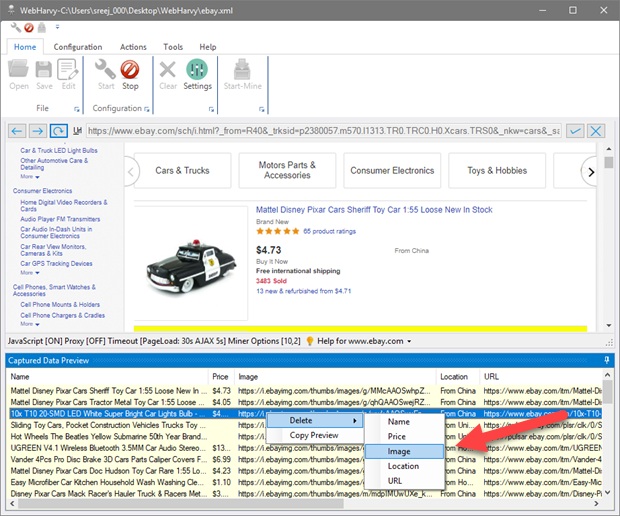
To select new data just click on it. To delete already selected data, right click in the 'Captured Data Preview' pane and select the data to be removed from the 'Delete' menu as shown below.
-
Once you have finished editing the configuration, click the Stop button within Configuration panel of Home menu. You may now save the configuration by clicking the Save button or run the configuration by clicking the Start-Mine button.
- 1. Open WebHarvy and navigate to the first URL in the list
- 2. Start configuration
- 3. Select required data
- 4. From Configuration menu, click URLs button within Edit panel.
- 5. In the resulting window paste all the remaining URLs in the list and click 'Apply'
- 6. Stop configuration
- 7. Start Mine - all URLs in the list will be scraped using the same configuration
How to edit configuration ?
Add / Delete data
Add / Remove URLs from Configuration
During configuration (or while editing configuration) you may click the URLs button within Edit panel of Configuration menu to add or remove additional URLs associated with the configuration.

In the resulting window, you may add or delete URLs in the configuration as shown below. All URLs added will be scraped using the same configuration.

If you have a list of URLs (all belonging to the same domain, which shares the same page layout) you may make use of this feature to scrape all URLs using a single configuration by following the steps given below.
Edit keywords
To edit keywords in the configuration, while configuring (or while editing the configuration), click the Keywords button within Edit panel of Configuration menu as shown below.

In the resulting window you may add/remove keywords associated with the configuration.

Edit Start URL and Post Data
To edit (change) the Start URL, Post Data and Headers of a Configuration, during configuration click the Start URL / PostData button within Edit panel of Configuration menu, as shown below.

In the resulting window you may change the values of Start URL, PostData and Headers

Disable auto pattern detection in start page
WebHarvy automatically finds and extracts repeating patterns of data occurring in the starting page of configuration. This helps you select and scrape similar data from all records in the start page via a single click. But sometimes, this feature needs to be turned off, when the starting page data is not a table or list, where there will be only a single entry for each data column per page.
For example, if you start configuration after loading the product details page of a product listed at Amazon, it is recommended to turn this option ON, since each selected data (like price, rating, ASIN etc.) occurs only once per page (per product).
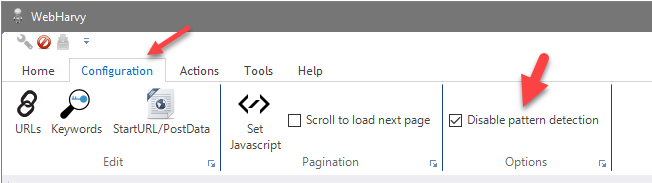
As shown below, you can select the Disable pattern detection option from within Options panel of Configuration menu.
You need to turn this option ON only when the starting page of configuration is not a list or table. Pattern recognition is disabled by default for pages loaded by navigating links from the start page.