You will need a paid account to access LinkedIn Sales Navigator. After logging into your Sales Navigator account, perform a search to get the list of leads you want to scrape. You can filter the search results based on various criteria such as location, industry, company size, etc.
Profile details like name, company, role, experience, profile URL, skills, etc. can be scraped from LinkedIn Sales Navigator using WebHarvy.
WebHarvy is a visual web scraping software that allows you to scrape data from websites without writing any code. You can download and install WebHarvy on your computer from here.
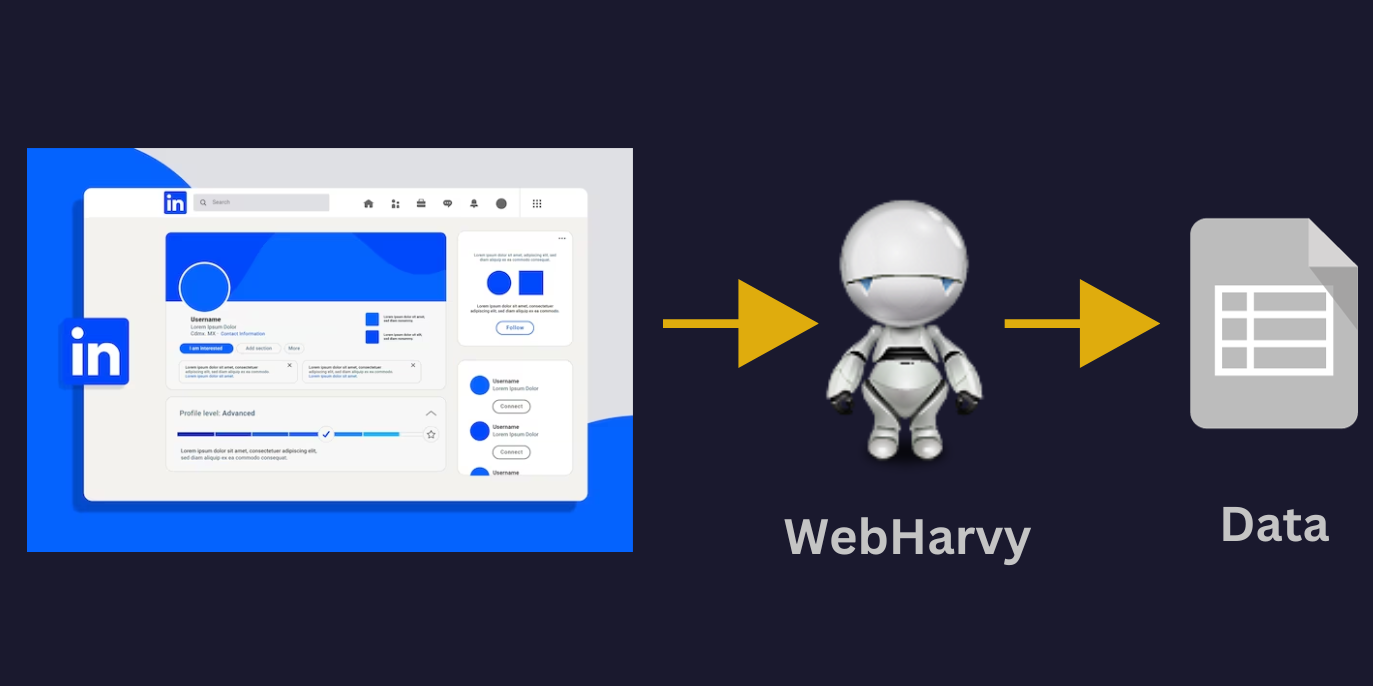
Steps to follow to scrape LinkedIn Sales Navigator using WebHarvy
- 1. Download and install WebHarvy in your computer
- 2. Open WebHarvy and login to LinkedIn
- 3. Load LinkedIn Sales Navigator and perform search to display leads which you are interested in.
- 4. Start Configuration
- 5. Click on the title of the first result and select More Options > Scroll List from the resulting Capture window. The page loads more results only as you scroll down, so this needs to be simulated during scraping.
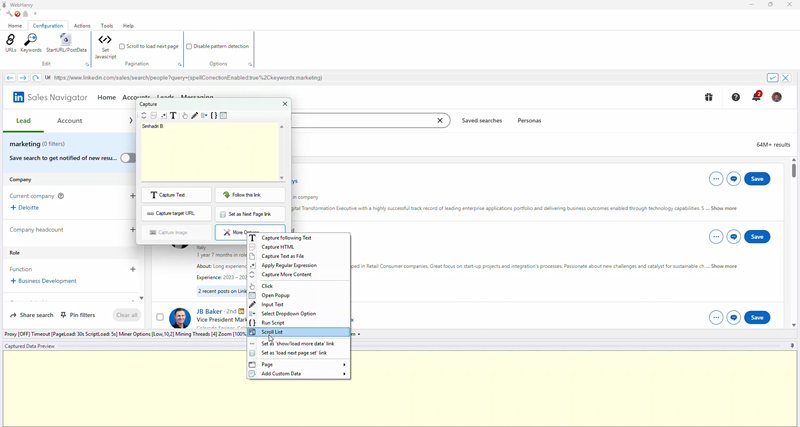
- 6. Wait for the page to scroll to the end.
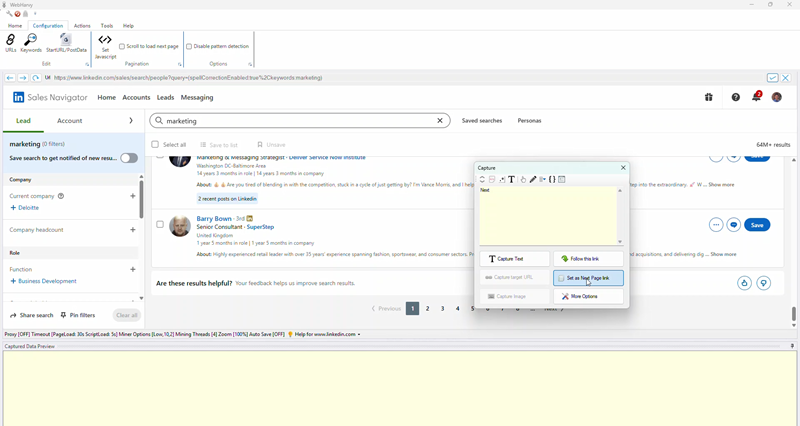
- 7. Click on the link to load the next page and Set it as Next Page Link. Now WebHarvy knows how to scrape data automatically from multiple pages of search results.
- 8. Scroll back up to the first listing and click on its title
- 9. Select the Capture Text option from the Capture window to select the name of the first result.
- 10. Similarly, click and select the role and company names from the starting page.
- 11. Sales Navigator will display the profile details when you click on the title link of the results. Click on the title of the first result and select More Options > Open Popup from the resulting Capture window. Wait for the profile details section to load.
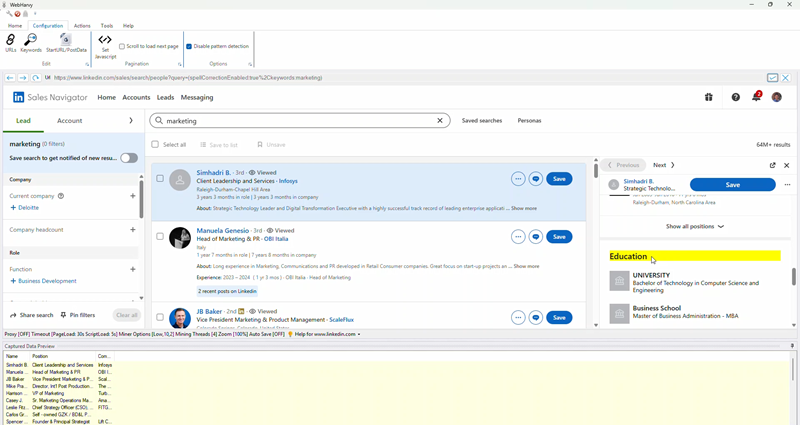
- 12. Once the profile details are loaded, you can click and select more details like Experience, Skills, Education etc.
- 13. Click the 'Stop Configuration' button once you have selected all required details.
- 14. You can now optionally save the configuration, so that it can be run later or edited to make changes.
- 15. Click on the 'Start Mine' button to start scraping data
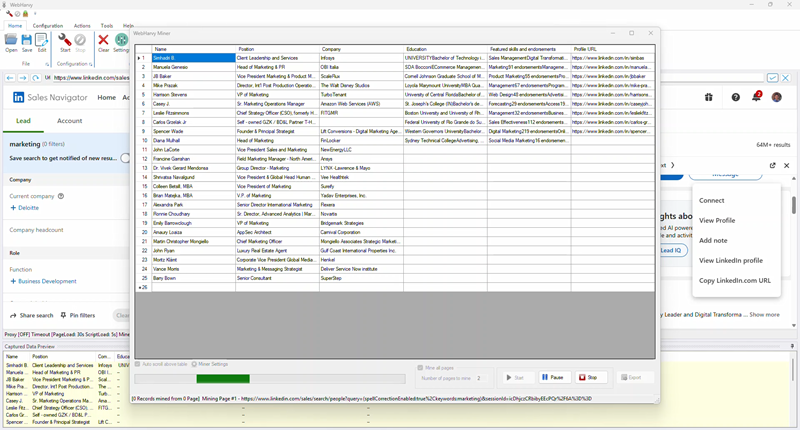
Video Demonstration
Video below shows how WebHarvy can be configured to scrape data from LinkedIn Sales Navigator.
Have Questions?
In case you have any questions or need assistance with scraping LinkedIn Sales Navigator using WebHarvy, feel free to reach out to us via our support page. Our support team is always ready to help you.