Prerequisites
Since you need a ZoomInfo account to access the contact details, please ensure that you have a valid account before proceeding. WebHarvy can login and scrape data from websites that require user authentication. Please make sure that you follow the steps mentioned here for handling user authentication. You can download and install WebHarvy in your computer if you haven't done so already.
Starting Configuration
To scrape ZoomInfo data using WebHarvy, open WebHarvy and load ZoomInfo website in WebHarvy's built-in browser. Login to your ZoomInfo account using your credentials. Perform a search to view the data which you need to scrape. Once the search results are displayed, save the search.
Clear the browser and load the Saved Searches page. Open WebHarvy Settings > Advanced Miner Options and select the value Low for Data Selection Accuracy. Click on the Start Configuration button to start selecting data for extraction.
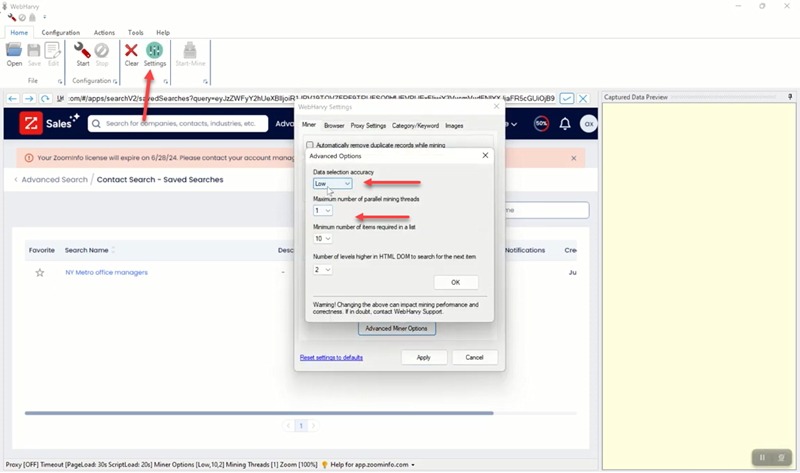
Loading search results and selecting data
After starting configuration, disable pattern detection and click on the saved search link which you would like to scrape. From the resulting Capture window, select the Click option and wait for the search results page to load.
Once the search results are displayed, enable patterns back and start selecting data. Details like Name, Job Title etc. can be clicked and selected from the start page using the Capture Text option in Capture window.
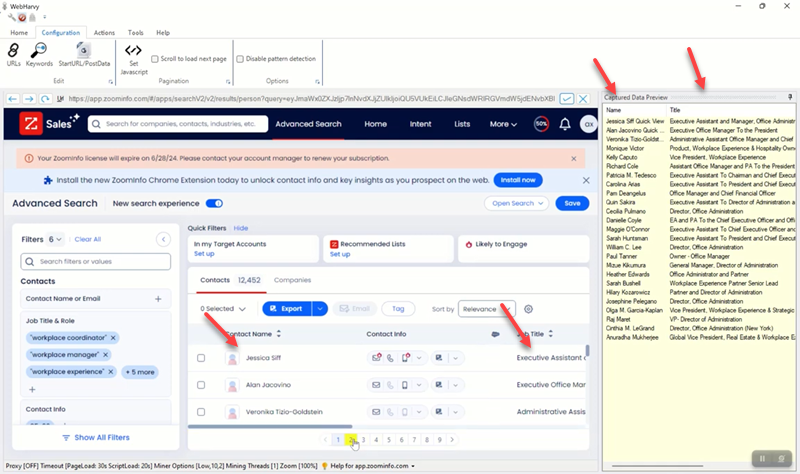
Configure Pagination
To enable WebHarvy to automatically scrape the selected data from multiple pages of search results, click on the link to load page number 2 and set it as the next page link .
Follow Links and Select More Details
To scrape contact details like email, phone number etc., click on the title of the first result and select the Follow this link option. Wait for the contact details page to load. Once the details page is loaded you can click and select more details like email address, phone number, website address etc. Whenever the data which you wish to scrape is guaranteed to appear after a heading text, use the Capture Following Text method, for better accuracy.
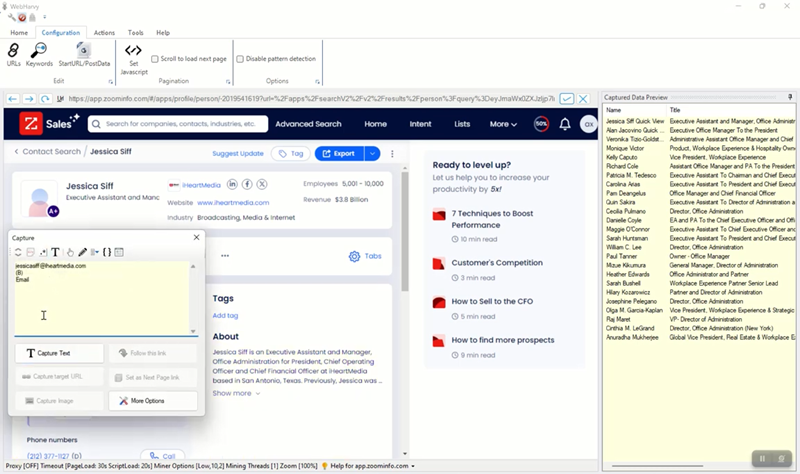
Starting Mining
Once you have selected all the required data fields, Stop Configuration. Save the configuration and start mining. WebHarvy will now automatically scrape the selected data from all pages of search results and save it in the desired format.
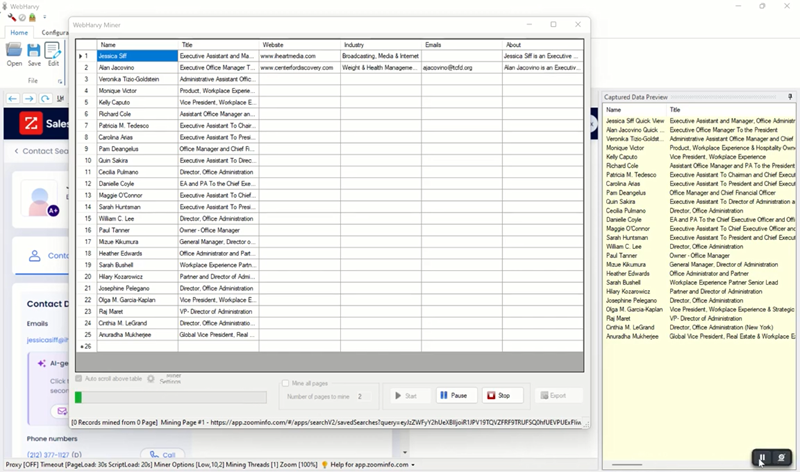
Video
Video shown below demonstrates how WebHarvy can be used to scrape data from ZoomInfo.
Need Support?
If you need any assistance with scraping data from ZoomInfo using WebHarvy, please feel free to contact us. We will be happy to assist you.