Step 1: Open the local html file in a normal browser
Open the local HTML file in a normal web browser installed in your computer (e.g., Chrome, Firefox, Edge) by double-clicking on the file.
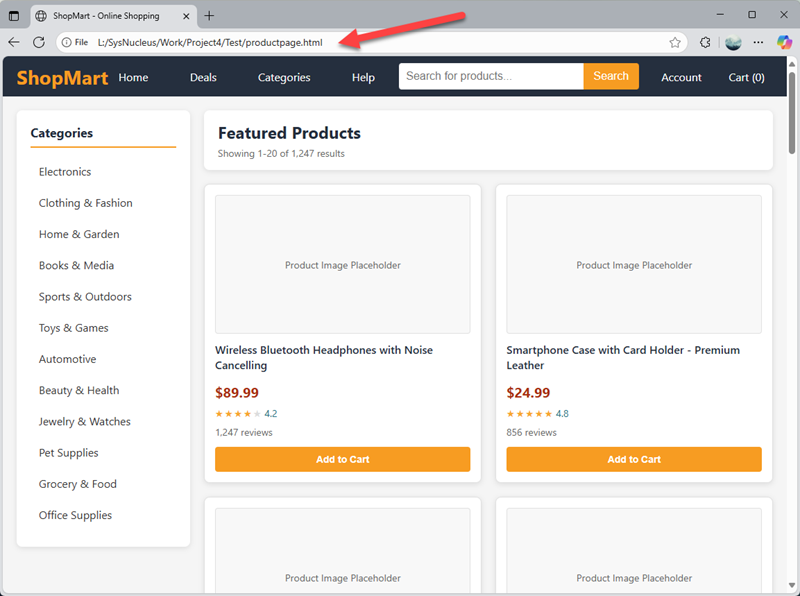
Step 2: Copy the URL of the opened local HTML file
Copy the URL of the opened local HTML file from the address bar of the browser. The URL will typically start with "file:///" followed by the file path. Though the "file:///" part is not visible in the address bar, it will be there when you copy the URL.
In the above example, the URL is file:///L:/SysNucleus/Work/Project4/Test/productpage.html
Step 3: Paste and load the copied URL in WebHarvy
Open WebHarvy and paste the copied URL in the address bar of WebHarvy. Then click on the load button or press the "Enter" key to load the local HTML file in WebHarvy.
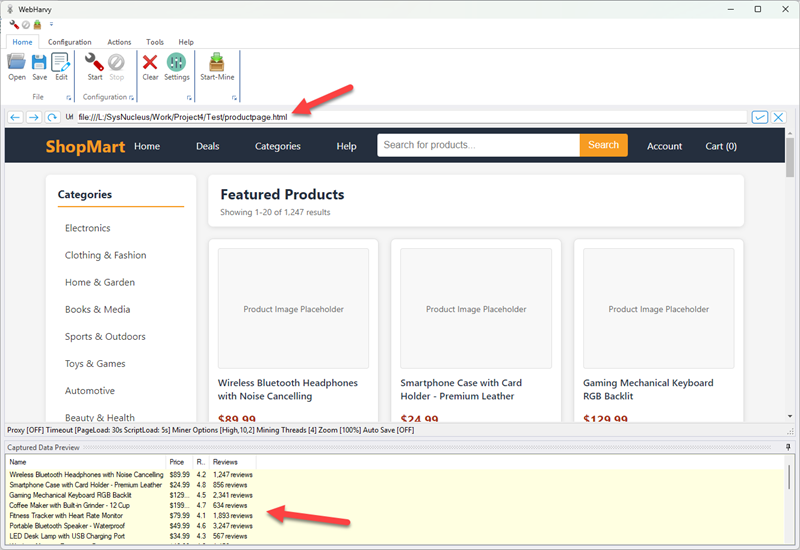
Step 4: Start configuration and select data to scrape
Once the local HTML file is loaded in WebHarvy, you can start the configuration by clicking on the "Start Configuration" button. Then select the data you want to scrape by clicking on the respective elements in the loaded page. You can also add similar local file URLs to the configuration using the Add URLs feature.