Watch Video Tutorial: How to scrape data by submitting multiple search keywords?
- The Evaluation version of WebHarvy supports only 2 keywords while scraping data using this feature
-
The Keyword Scraping feature of WebHarvy allows you to scrape data by submitting a list of keywords to a web page. This feature lets you configure WebHarvy to scrape the data which is displayed after submitting each keyword in the list. Let us follow an example.
Watch video demonstration of this feature
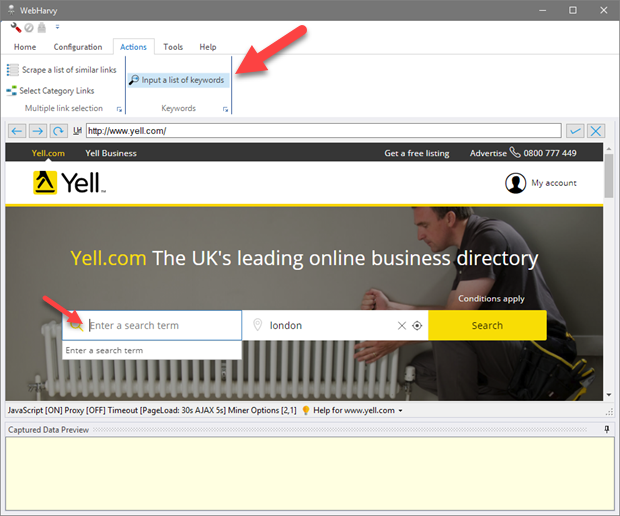
Suppose we need to scrape the search results for the following keywords at a yellow pages website : Accountant, Lawyer, Plumber and Doctor. First navigate to the search/home page of the website. Place the cursor in the search box and click the Input a list of keywords button from Actions menu as shown below.
-
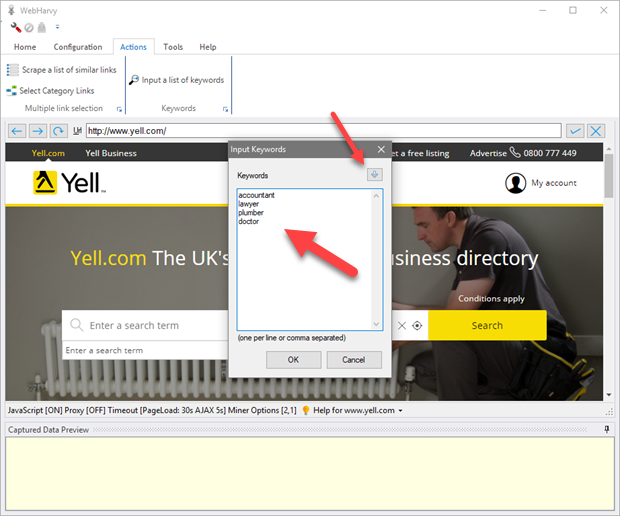
In the resulting window, enter keywords. You may type in the keywords one-per-line or copy-paste a keyword list in CSV format. You can also import keywords directly from a CSV file (or file with one keyword-per-line format) by clicking the import button on the top right side of the window.
-
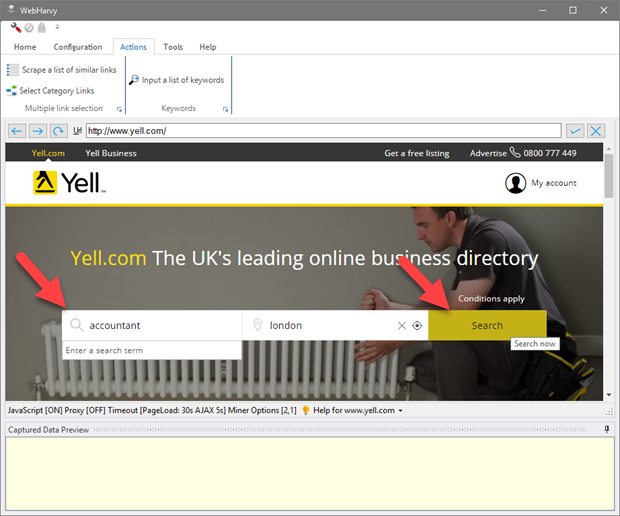
Click the OK button and WebHarvy will automatically fill the selected input (search) box with the first keyword in the list. Make sure that you do not change this. In case WebHarvy does not automatically fill the input (search) box with the first keyword, you should manually enter the first keyword (as it is, case sensitive).
You may fill multiple input fields with keywords following the above method. For example separate keywords lists can be provided for search term and location.
Once all keyword lists are configured, you may manually fill additional search / form parameters and click the 'Search'/Form submit button.
-
Once the page displaying search results is loaded, click the Configuration - Start button in Home menu and start selecting data to be scraped. Click Configuration - Stop button in Home menu when you have finished selecting data. Click Start-Mine button to start mining data. While mining, the configuration will be repeated for all specified keywords.
-
Adding keywords after starting configuration
If for some reason you are unable to configure Keywords as explained above, you can add them after starting configuration. For this, after starting configuration, click on the 'Keywords' button in the 'Configuration' tab.
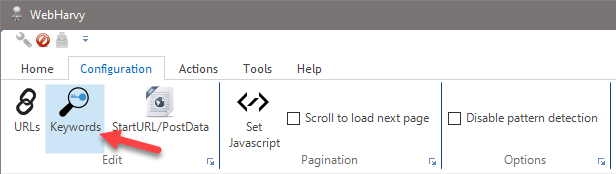
In the resulting Keywords window, you can type in the keywords one per line or comma separated. However, the first keyword which you enter should appear 'as it is' in either the start URL / Post Data of the configuration, or in an Input Text field used in the configuration to perform search.
- 1. Load the search page in WebHarvy's configuration browser.
- 2. Start Configuration.
- 3. Click over the search box and select More Options > Input Text option from the Capture window.
- 4. In the resulting window, paste the first keyword from your list of keywords and apply. The first keyword will appear in the search box.
- 5. Use the page interaction functions to fill other inputs in the search form and click on the search button to load the search results page.
- 6. From the Configuration menu tab, click the Keywords item under Edit pane.
- 7. Paste the full keyword list (including the first one) in the resulting window and Apply
- 8. Continue with data selection
-
Related Links
Adding Keywords for Input Text action
For some websites, the search keyword is not passed in the URL or Post Data. In such cases, you can use the Input Text action to enter the keyword in the search box. Follow the steps give below.