-
WebHarvy supports AI-assisted web scraping. You can connect WebHarvy to local or cloud AI Providers / LLMs to summarize, analyze and extract data intelligently while mining a website, in addition to WebHarvy's regular point-and-click data selection.
- Local LLMs — via Ollama or LM Studio
- Cloud LLMs — OpenAI and Anthropic (+ all providers which support the OpenAI API Protocol)
- 1. Generate summaries from blocks of text
- 2. Analyze the sentiment of scraped content
- 3. Extract complex insights from unstructured data
- 4. Transform or clean data before it is captured
- 5. Extract data that is difficult to select using regular point-and-click methods
- etc.
- 1. Open WebHarvy Settings from the Home menu.
- 2. Switch to the AI tab.
- 3. Select your AI provider (Ollama (local), OpenAI or Anthropic) and provide the required connection details, such as the local server address for Ollama/LM Studio, or the API key for OpenAI/Anthropic.
- 4. Select the model you would like WebHarvy to use, then save the settings.
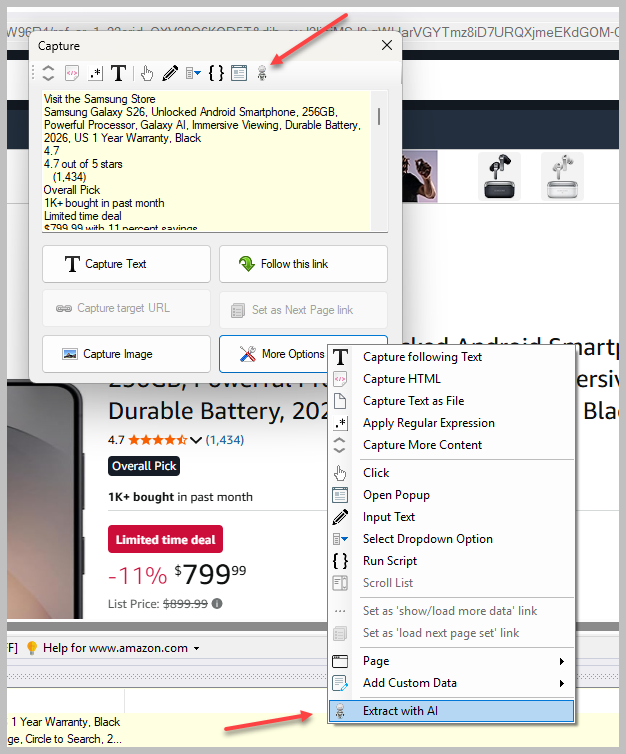
- 1. Click on the area of the webpage from which you want to extract data using AI.
- 2. From the More Options menu, select Extract with AI.
-
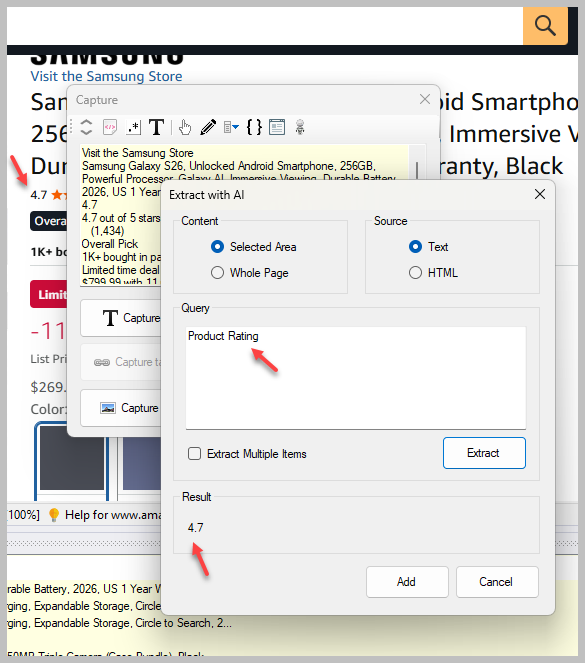
3. In the window that appears, specify:
- The extraction area - either the currently selected region, or the entire page.
- The source to use for extraction - the page's displayed (rendered) text, or its underlying HTML code.
- Describe what you want the AI to do - for example, summarize the selected text, determine its sentiment, or pull out specific values from it - and WebHarvy will capture the AI generated output as a data column, just like any other selected field.
Supported AI Providers
WebHarvy can connect to the following AI providers:
What can you do with AI in WebHarvy?
Once configured, AI can be used during configuration and mining to:
Configuring AI Settings
Before you can use AI while selecting data, you need to connect WebHarvy to your preferred AI provider.
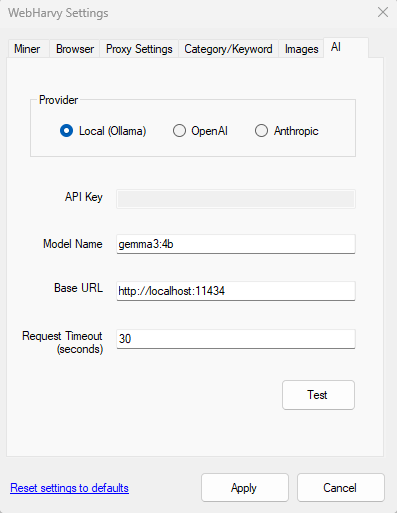
Note: Click the 'Test' button to verify that the connection parameters you provided are correct.
Extracting Data Using AI
Once an AI provider has been configured, you can use it while selecting data during configuration.
Note: Using cloud based AI providers (OpenAI, Anthropic) sends the selected page content to the respective provider for processing, and may incur usage costs as per their pricing. Local LLMs run via Ollama or LM Studio process data entirely on your own computer and do not incur charges.