
Whether you are building a price-comparison tool or conducting deep market research, Walmart’s massive product catalog is a goldmine of information. In this guide, we will break down exactly how to scrape Walmart product data efficiently, reliably and at scale.
WebHarvy – A Professional-Grade Scraper Without the Subscription Trap
While most scraping tools lock you into a monthly subscription, WebHarvy stands out in 2026 by offering a refreshingly simple one-time license model. It is simple to use, yet powerful for tackling even complex websites and scraping requirements. Using WebHarvy’s visual point-and-click user interface, you can scrape data from any website, including eCommerce websites like Walmart, eBay, Amazon etc.
Video Walkthrough – How to scrape Walmart Product Data?
The following video demonstrates how easy it is to scrape product data including images and prices from Walmart using WebHarvy.
Step-by-step Guide to Scrape Walmart Product Data
The following are the summary of steps shown in the above video.
- Download and install WebHarvy in your computer
- Open WebHarvy and navigate to the Walmart product listings page from which you wish to scrape data. You can use the search functionality of the website or navigate to a product category.
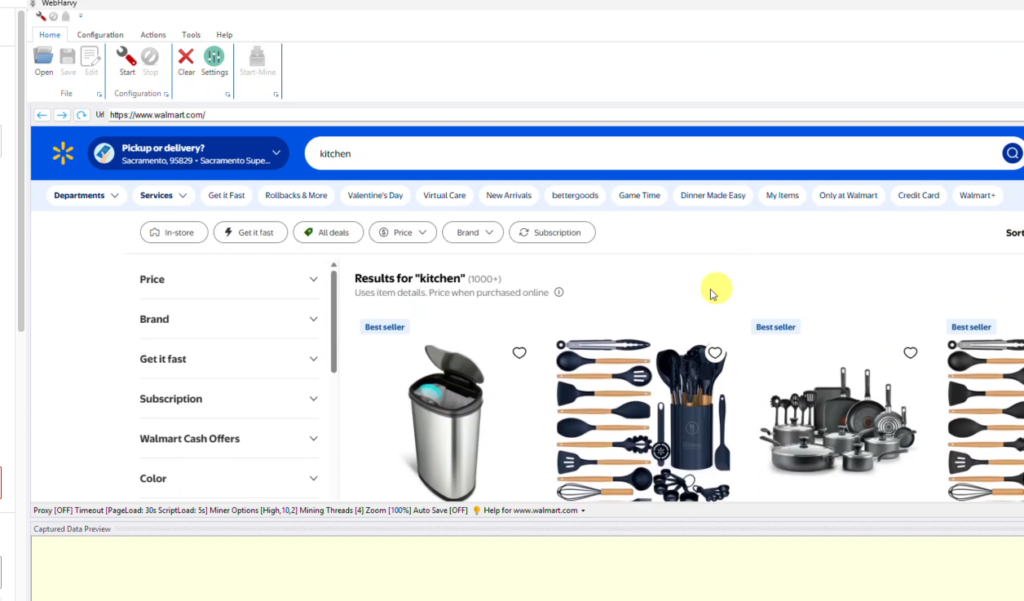
- Start Configuration to start selecting data to scrape
- While in configuration mode, you can click over any text or image displayed on the page to capture it for extraction. Select the Capture Text option after clicking on the desired data item to select it’s text for extraction.
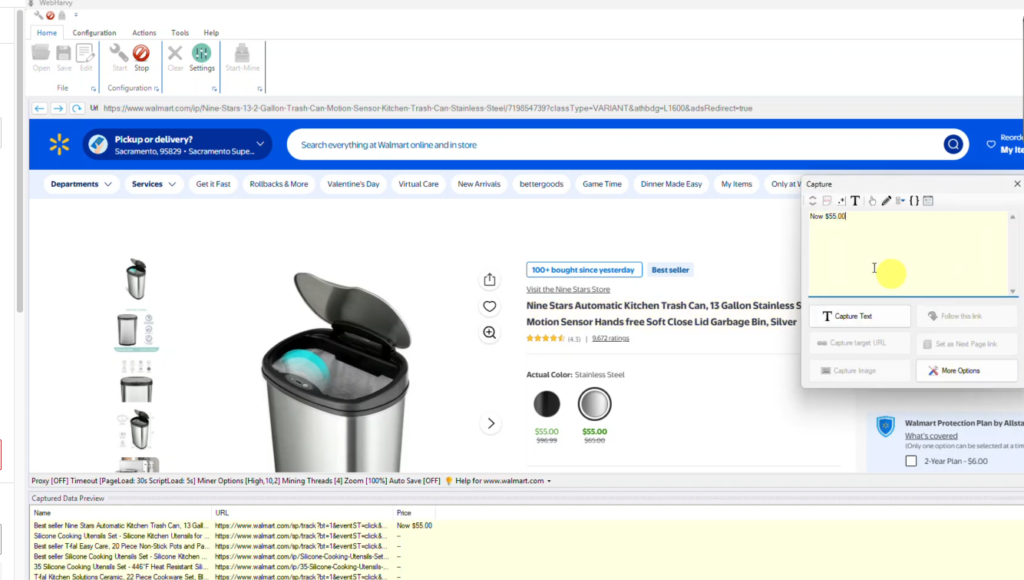
- Since the product listings span across multiple pages, scroll down the page and click on the link to load the next page of listing. Set it as the next page link.
- To follow each product link, click on the product’s title link and select the Follow this link option.
- Wait for the product details page to load
- Once loaded, you can click and select more details.
- To scrape images, click over the first thumbnail image and Capture HTML. Then Apply RegEx. Paste and select the following RegEx string.
srcset="([^\?]*)
- Click on the Capture Image option. Click Yes when WebHarvy asks whether to scrape multiple product images.
- To scrape the product SKU, click anywhere on the page and double click on the Capture HTML toolbar button of the Capture window to select the entire page HTML. Then apply the following RegEx string.
"sku":"([^"]*)
- Once you have selected all required data, Stop Configuration
- You can now optionally Save the configuration so that it can run later or edited to make changes
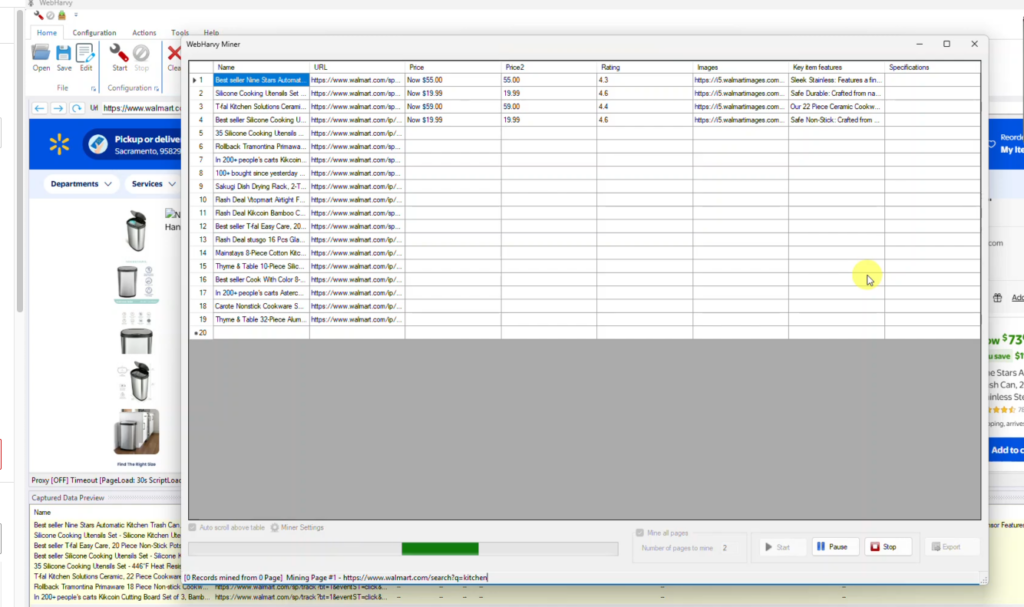
- Click the Start Mine button to start scraping data.
Questions?
If you have any questions or need assistance, please do not hesitate to contact us.