
eBay is one of the world’s largest online marketplaces where millions of buyers and sellers trade everything from electronics and collectibles to fashion and home goods. Scraping eBay data allows businesses, sellers and researchers to extract valuable information like product prices, seller ratings, auction trends etc. for competitive analysis and market research.
What is eBay scraping?
eBay scraping is the process of automatically collecting publicly available data from eBay listings and pages. Commonly scraped data includes:
- Product titles
- Prices
- Item condition
- Shipping costs
- Delivery information
- Seller name and ratings
- Product page URL
- Item details
- Product Images
- Seller provided item description
- etc.
This data is often used for price analysis, market research, competitor tracking, drop shipping research and trend analysis.
How eBay pages are structured?
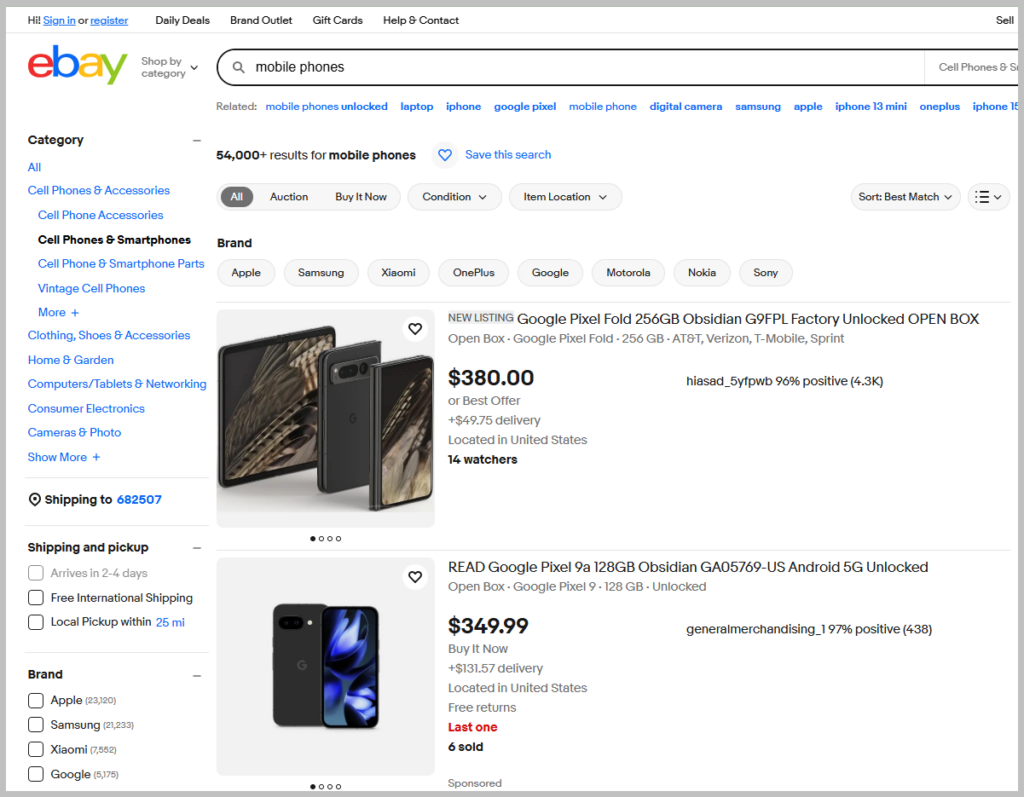
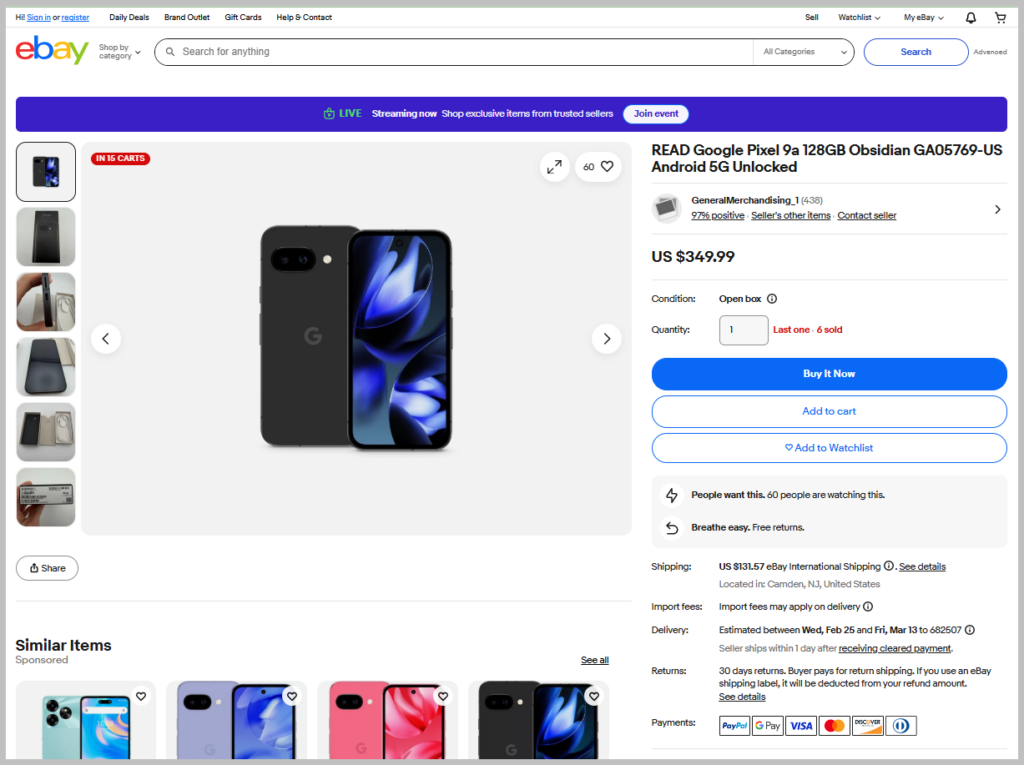
eBay is a dynamic website that uses standard HTML for most listing content, JavaScript for dynamically loading data and URL parameters for filtering and pagination. The following are the key page types:
- Search result pages (multiple product listings)
- Product details pages (single product)
- Seller profile pages
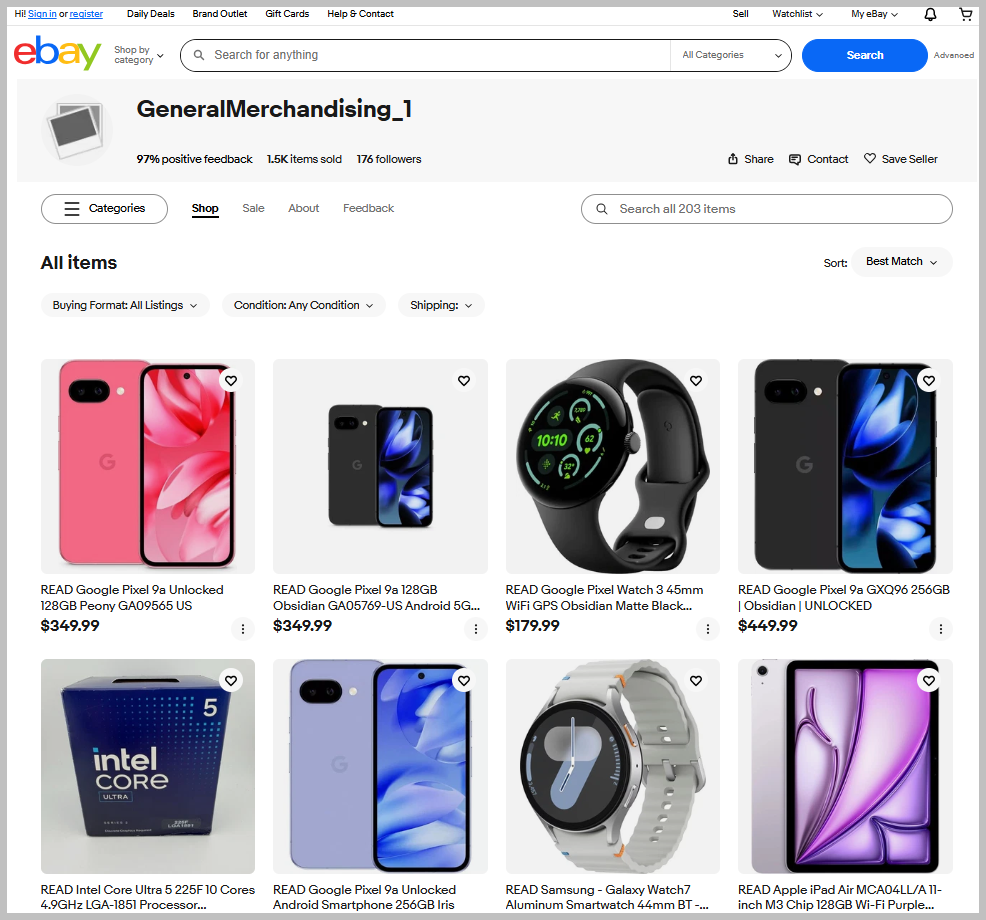
Data from all the above page types can be scraped.
Various ways to scrape eBay
The following are the various ways in which you can scrape data from eBay
- eBay provides an official API (eBay Developers program), but this is not open to all. You will need to get approval from eBay to get the keys to access this API. In addition, there will be rate limits and restrictions (not all data is available)
- Developers can build their own scrapers using open source libraries like BeautifulSoup or using services of third-party API providers like Apify.
- Use a web scraping tool like WebHarvy, Octoparse or ParseHub to scrape the data without any coding.
Using WebHarvy to Scrape eBay
WebHarvy is an easy-to-use visual web scraping software which can scrape data from any website. WebHarvy can scrape product data from eCommerce websites like Amazon, eBay, Home Depot, Shopee etc.
WebHarvy allows you to select the data to scrape via simple mouse clicks. WebHarvy can follow links, handle pagination, scrape multiple product images etc.
You need to download and install WebHarvy locally in your computer. We offer a free 15 days evaluation version for you to try the software before purchase.
Video Demonstration (Scraping eBay Product Data and Images)
The following video shows how easy it is to scrape product data including images form eBay using WebHarvy.
Step-by-step Guide
Step 1: Loading the page
Open WebHarvy and navigate to the product listings page at eBay from which you need to scrape data. You can load the eBay website and perform search using a keyword (example: mobile phones) just like how you would do on a normal browser.
Step 2: Starting Configuration & Selecting Data
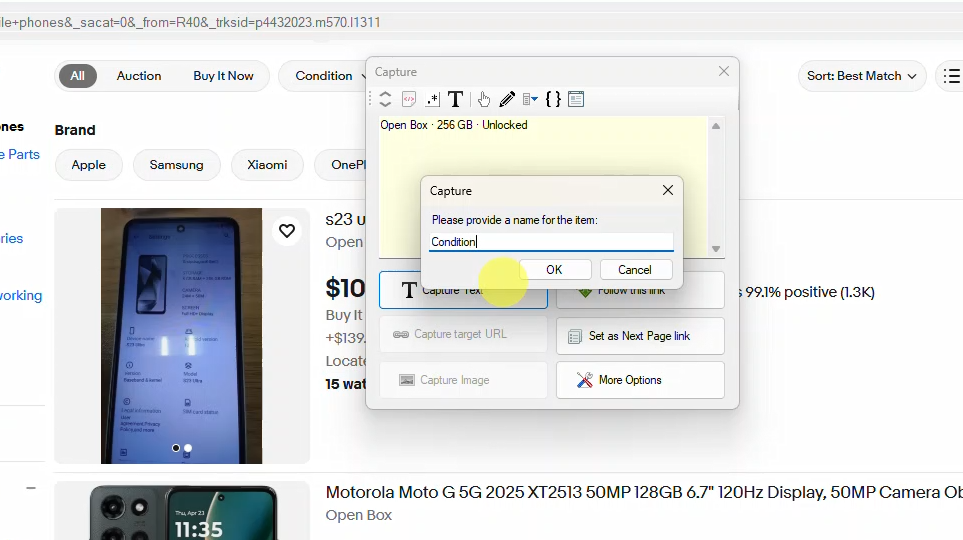
Once you have loaded the page displaying the data to scrape, start configuration. Now you can click and select the data items which you need to scrape. When you click over any item on page (text or image), WebHarvy will display a Capture window with various options. Select the Capture Text option to select the text of the clicked item for extraction. Details like product title, price, condition etc. can be selected from the product listings (search results) page in this method.
Step 3: Configuring Pagination
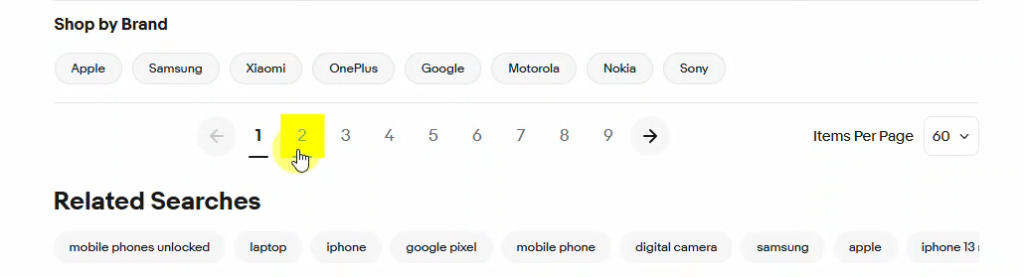
Since product listings span across multiple pages, you will have to teach WebHarvy how to load subsequent pages. For this, scroll down the page and click on the direct link to load page number 2 and select the Set as next page link option from the Capture window displayed. (Know more)
Step 4: Following Links & Selecting Data from Product Details Page
To open each product link to load the product details page and scrape additional data, click on the title/link of the first product and select the Follow this link option from the Capture window. Wait for the product details page to load. Once loaded, you can click and select more details just like how you did in the starting search results page. (Know more)
Step 5: Stop & Save Configuration
Once you have finished selecting data, Stop Configuration. You can now optionally Save the configuration so that it can be run later, edited to make changes or scheduled to be run periodically.
Step 6: Start Mine
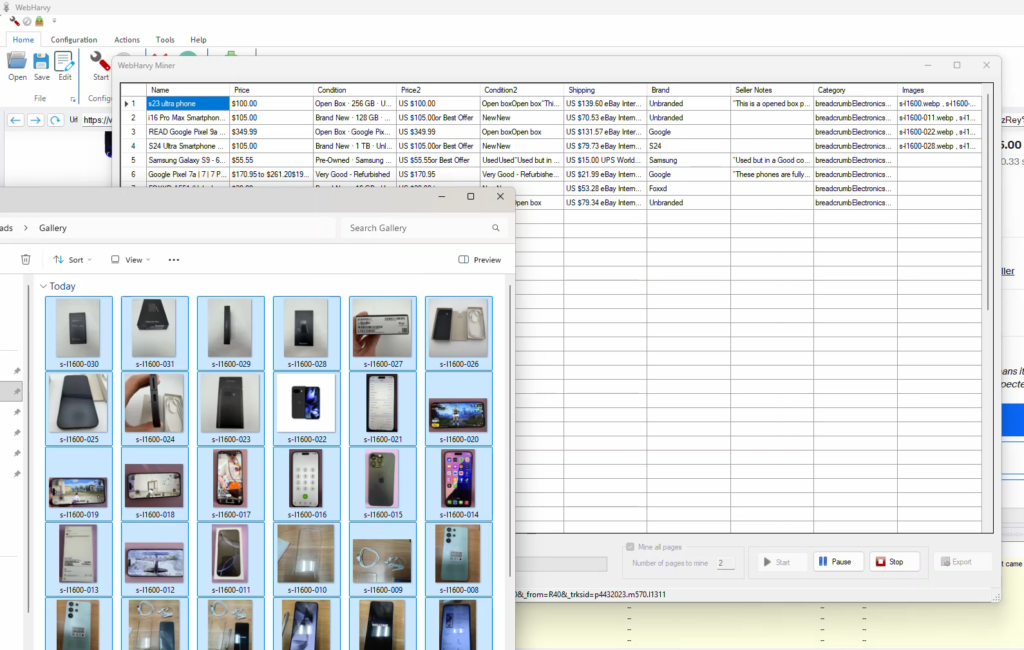
Click the Start Mine button to start scraping data using the configuration. You can specify the number of pages to mine or just select Mine all pages option. Once mining finishes, the scraped data can be saved to a file or database. Various file formats and database types are supported. (Know more)
Have Questions?
We recommend that you download and try the free evaluation version of WebHarvy from our website. In case you have any questions, please do not hesitate to reach out to our support team.