
Shopee is one of the largest e-commerce platforms in Southeast Asia with hundreds of millions of monthly visitors. In this article you will learn how to scrape Shoppe product listings data to a spreadsheet or database without writing any code.
The easiest way to scrape Shopee Product Data
The easiest way to scrape product data from eCommerce websites is to use a visual web scraping tool like WebHarvy that has an intuitive, point-and-click user interface. There is no need to write any code as you can select the data which you need to extract using mouse clicks.
Moreover, WebHarvy is a standalone desktop application, so there are no recurring charges or limits on scraping data. The registered version of WebHarvy allows you to scrape unlimited number of products/pages from any website.
TL;DR (Video Demonstration)
The following video shows how WebHarvy can be used to scrape product data from Shopee. Details like product name, price, shipping details, images, rating and reviews, specifications etc. can be scraped from Shopee using WebHarvy.
Step-by-step Guide
Download and Install
First, download and install WebHarvy in your computer. We offer a free 15-days evaluation version of WebHarvy for you to try.
Load the target web page
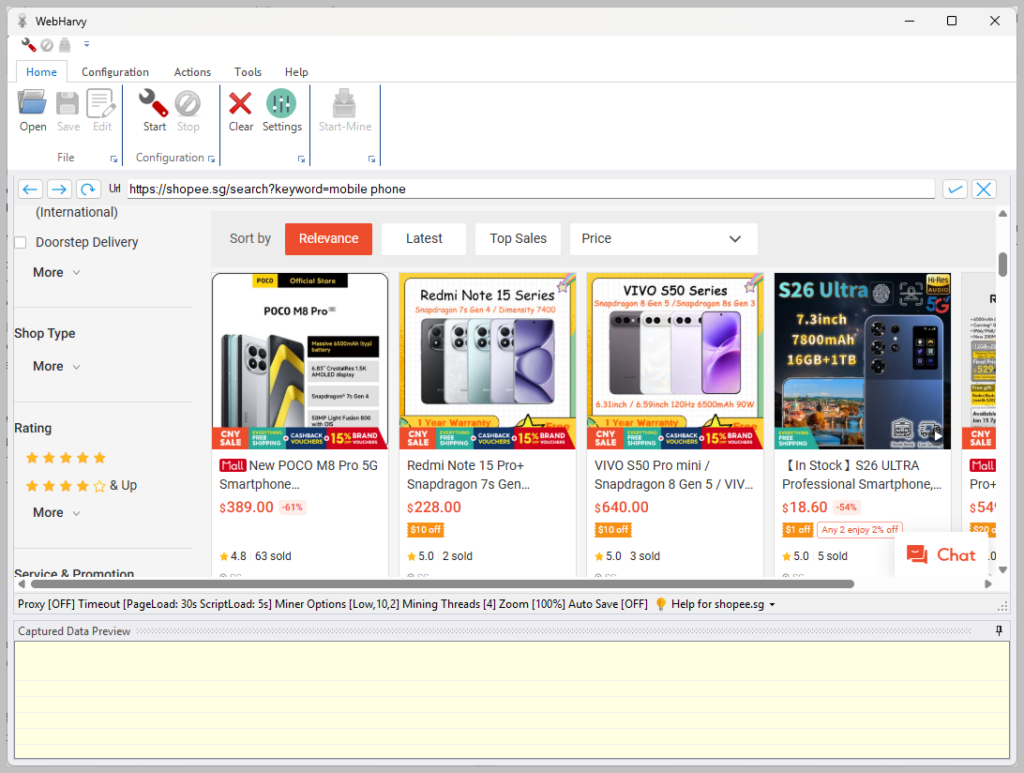
Open WebHarvy and load Shopee website within WebHarvy’s browser. Login using your user account and navigate to the product listings page from which you wish to scrape data.
Select data to scrape
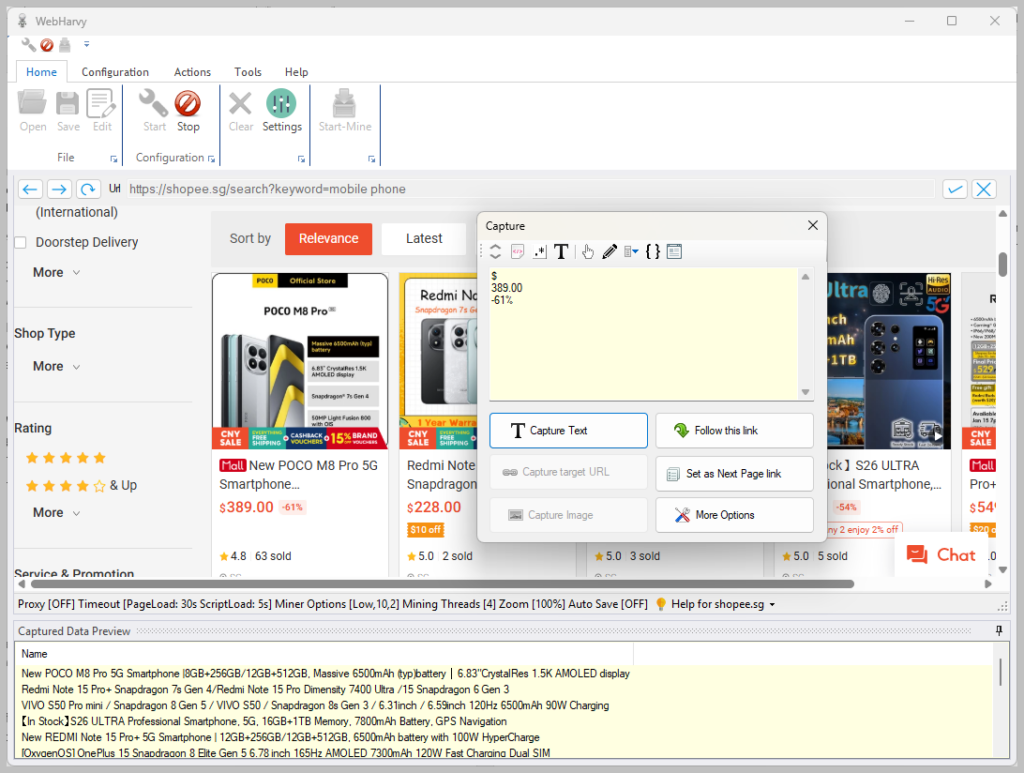
Click the Start button under Configuration pane in Home menu to Start Configuration. You can now click and select the data which you need to scrape. Details like product title, price, URL etc. can be selected in this method.
Configure Pagination
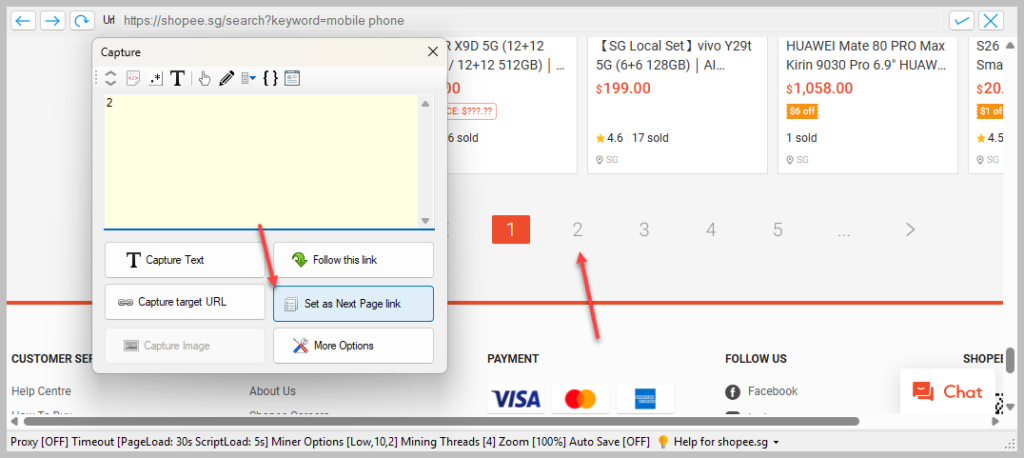
To teach WebHarvy to scrape data from multiple pages of product listings, click on the link to load page number 2 and Set it as the next page link.
Follow links and scrape data
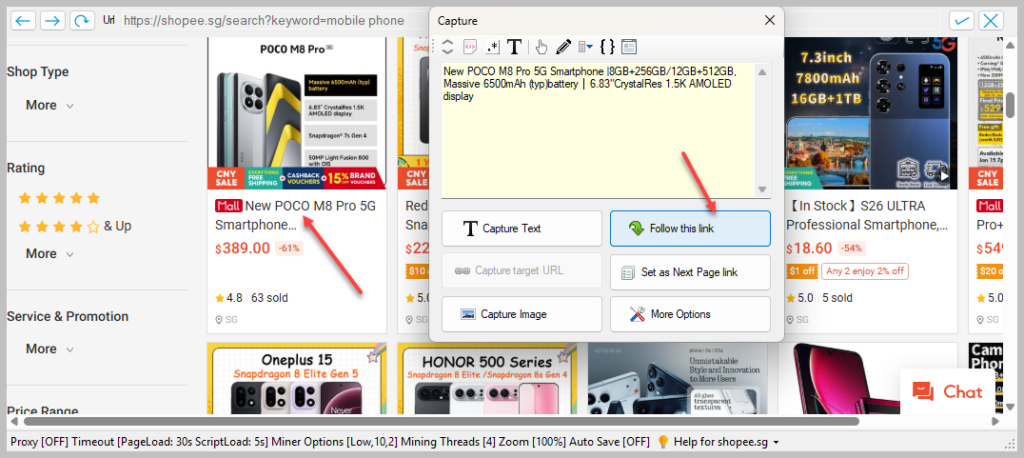
To follow each product link and scrape more details, click on the title/link of the first product and select Follow this link option. Wait for the details page to load. Once loaded, you can click and select more data.
Stop Configuration and Start Mine
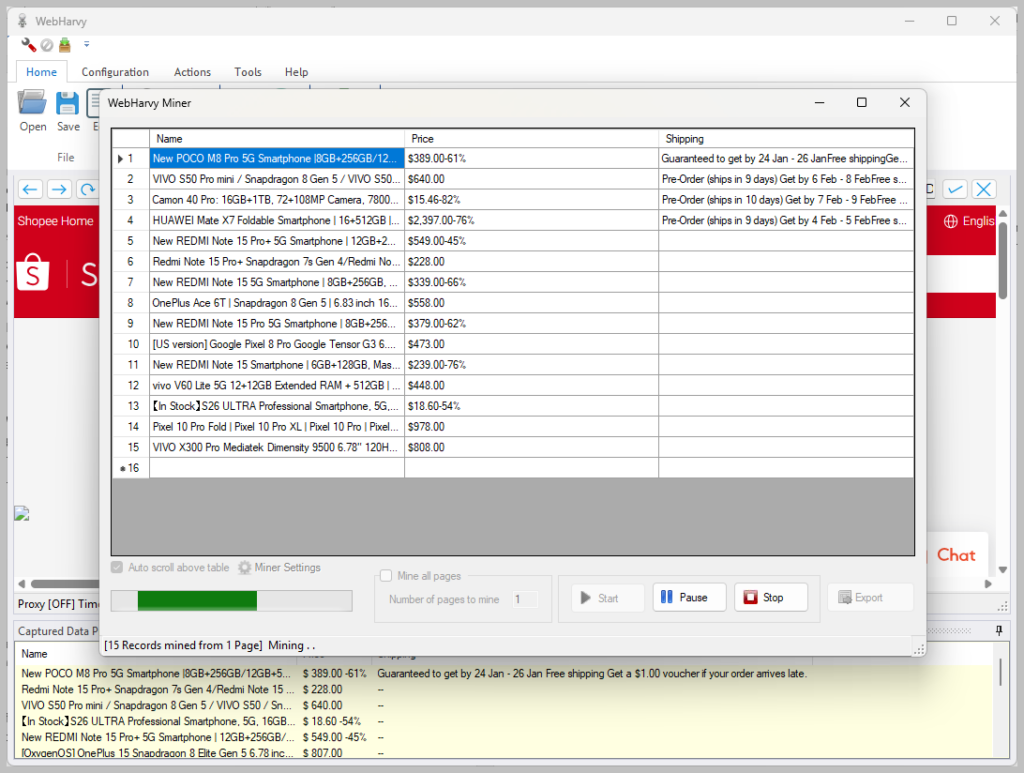
Once you have finished selecting all data, Stop Configuration. You can now optionally Save the configuration file. Start Mine to start scraping data using the configuration.
Save scraped data to file or database
When mining completes, the scraped data can be saved to a file or database.
Download and Try WebHarvy
If you are interested to use WebHarvy to scrape data from Shopee as well as from other e-commerce platforms we recommend that you download and try using the free evaluation version of WebHarvy. To get started, please follow this link.
Have questions?
Please feel free to contact our technical support team.