
In this article you will learn how to scrape supplier details from Thomasnet website. Details like supplier name, address, website, phone number etc. can be scraped from Thomasnet.
Web scraping helps you to scrape supplier details listed under various categories in Thomasnet website. Data from listings which span across multiple pages can be extracted using the automated process of Web Scraping. We will be using WebHarvy for scraping Thomasnet. WebHarvy is very easy-to-use and can scrape data from any website. Using WebHarvy you can select the data which you need to scrape via simple mouse clicks.
Step-by-step Guide
- Download and install WebHarvy in your computer. You may download the 15 days free evaluation version of WebHarvy from https://www.webharvy.com
- Open WebHarvy and navigate to the page at Thomasnet website from which you wish to scrape data.
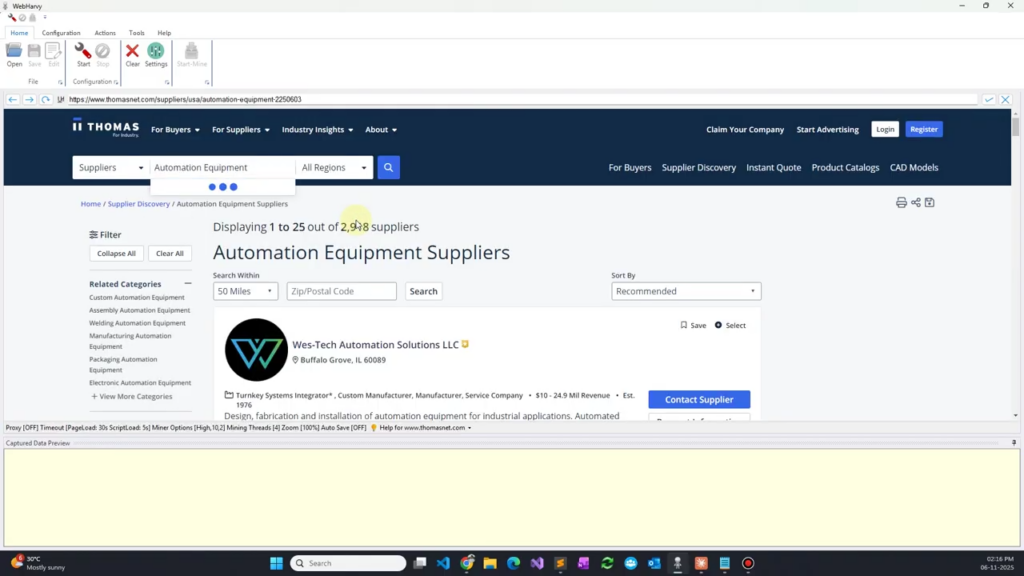
- In the above image the suppliers category at Thomasnet website corresponding to ‘Automation Equipment’ is loaded within WebHarvy’s browser.
- Start Configuration
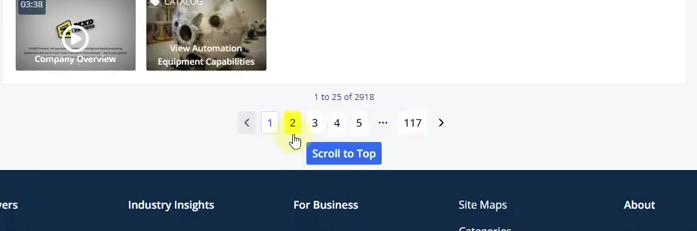
- Scroll down the page and click on the link to load the second page of listings and Set it as the next page link.
- Normally, WebHarvy allows you to configure the scraper using mouse clicks alone. But in the case of Thomasnet website we need to run a script on the page so that following each supplier link to load the supplier details page is easy. For this, click anywhere on the page and select the Run Script option from More Options in the Capture window. Paste and run the following code.
function decodeUnicode(str) {
    return str.replace(/\\u[\dA-Fa-f]{4}/g, match =>
        String.fromCharCode(parseInt(match.replace("\\u",""), 16))
    );
}
function getNameFromCode(name) {
	data = JSON.parse(document.getElementById('__NEXT_DATA__').innerText).props.pageProps.companies;
	tgramsId = null;

	for (let obj of data) {
	    if (obj.name && decodeUnicode(obj.name) === name) {
	        tgramsId = obj.tgramsId;
	        break;
	    }
	}
	return tgramsId;
}
function slugify(name) {
    return name
        .toLowerCase()
        .replace(/[\s]+/g, '-')
        .replace(/[^a-z0-9\-]/g, '')
        .replace(/\-+/g, '-')
        .replace(/^\-+|\-+$/g, '');
}
titles = document.querySelectorAll('[data-testid="supplier-name-link"]');
for (i = 0; i < titles.length; i += 2) {
	title = titles[i];
	console.log(title.innerText);
	logo = title.parentElement.parentElement.parentElement.parentElement.children[0].children[0];
	imgURL = logo.getAttribute('srcset');
	console.log(imgURL);
	id = getNameFromCode(title.innerText);
	console.log(id);
	url = "https://www.thomasnet.com/company/" + slugify(title.innerText) + "-" + id + "/profile";
	console.log(url);
	title.setAttribute('href', url);
}- The above is the only code which you need to use. The rest of the steps are easy. To select the supplier name for extraction, just click over it and select the Capture Text option from the Capture window.
- To load the supplier details page, click over the first supplier name. From the resulting Capture window, select the Capture HTML option. Then select the Apply RegEx option. From the RegEx dropdown, select the first option to Get link/URL from HTML, and Apply.
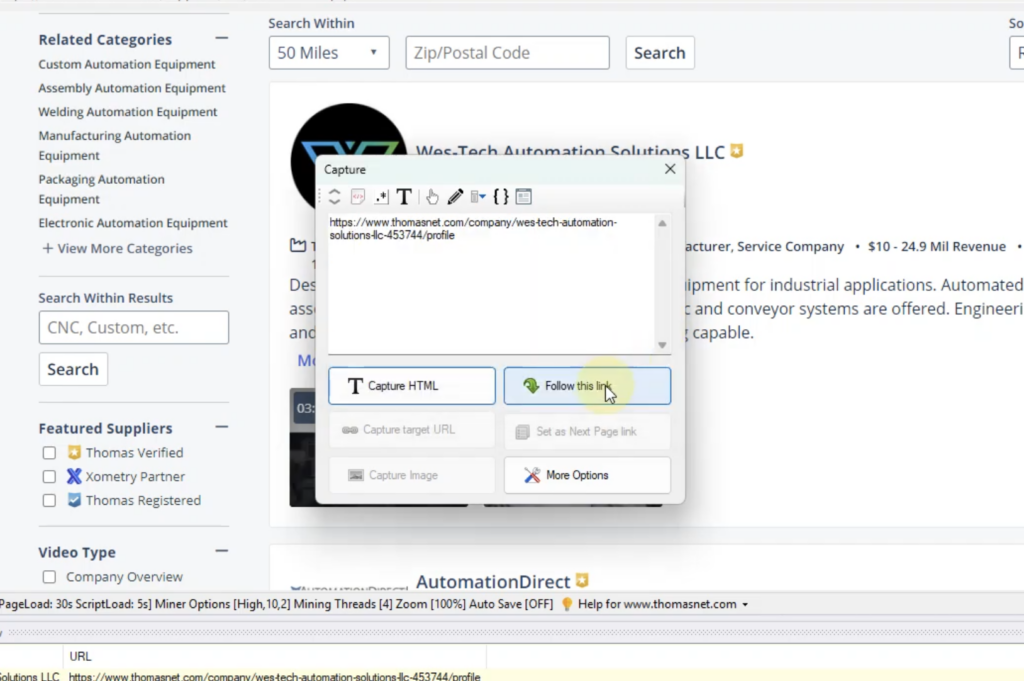
- Click on the Follow this link option which will get enabled when you apply the RegEx string. Wait for the supplier details page to load.
- Details like supplier company address and description can be selected by directly clicking over the respective text and by selecting the Capture Text option.
- To scrape the supplier phone number, click over the View phone number button and select the Click option. This will open a popup which displays the Phone number and Website address.
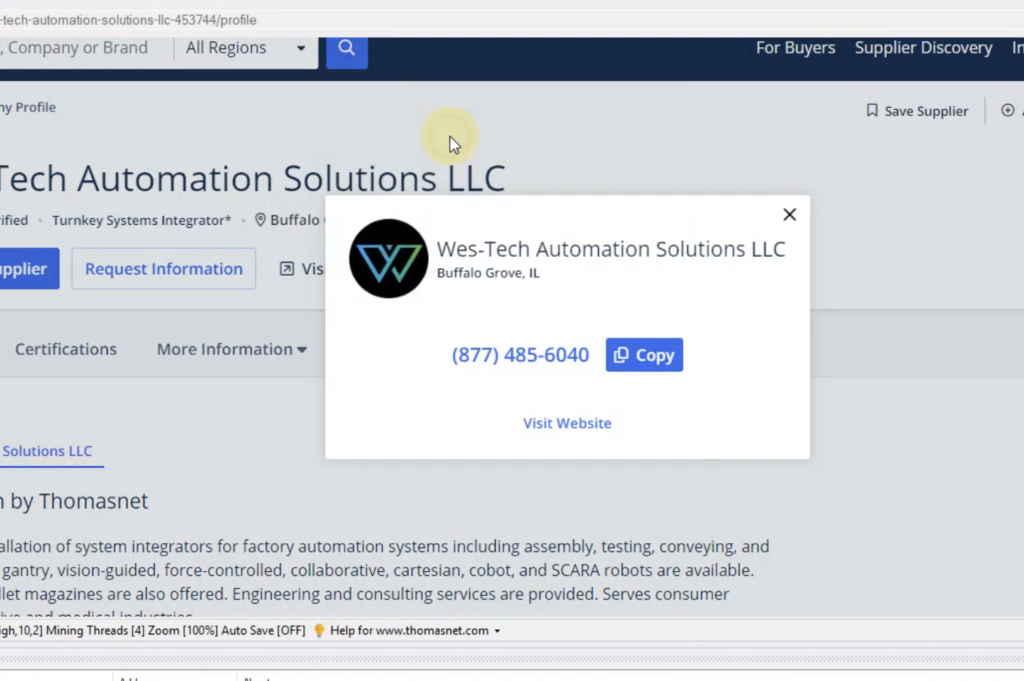
- Phone number can be selected for extraction by directly clicking over its text and by selecting the Capture Text option.
- Website address can be scraped by selecting the entire popup text, capturing its HTML and then applying the RegEx to get the URL/link from the HTML. (Refer the video below).
- Once you have selected all required details, Stop Configuration
- Optionally Save the configuration so that it can be run later, edited to make changes or scheduled to be run periodically.
- Click the Start Mine button to start mining data using the configuration.
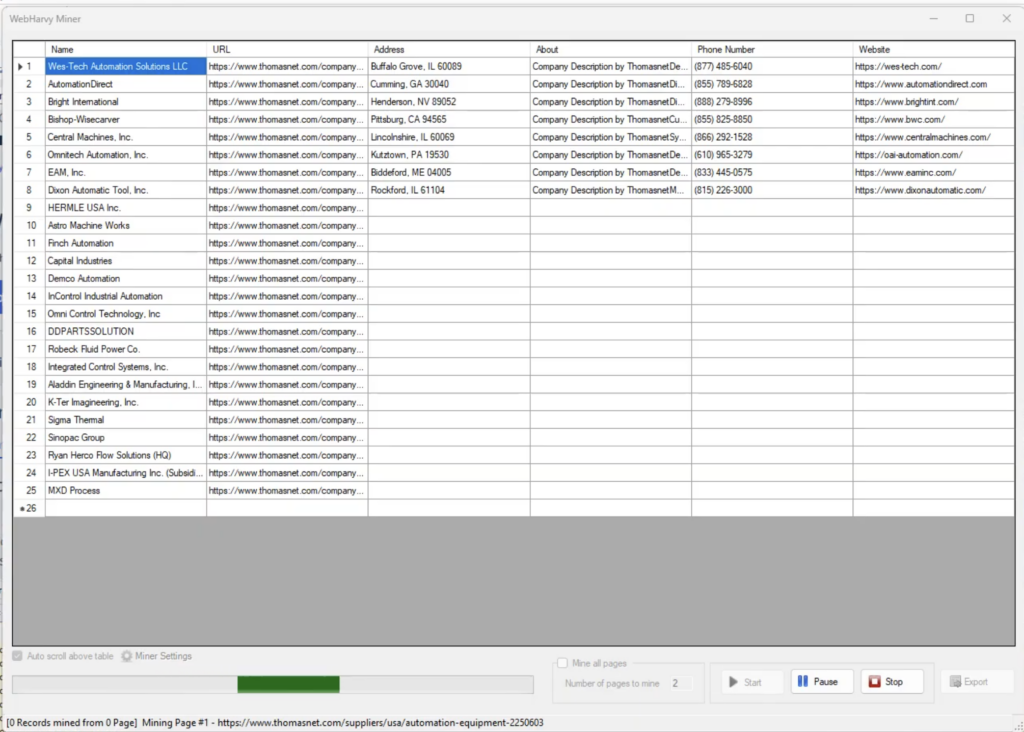
- As mining proceeds, the data scraped will be displayed in the Miner window’s data table. This data can be saved to a file (CSV, Excel, JSON etc.) or to a database.
Video Demonstration
Video displayed below shows the above steps in detail. Please watch and follow the steps shown in the video to scrape supplier data from Thomasnet website using WebHarvy.
Download & Try
We recommend that you download and try using the free evaluation version of WebHarvy. Please follow this link to get started.