
The following are the changes in this major update.
AI Assisted Web Scraping
Added support for connecting WebHarvy to both local open source LLMs (using Ollama, LM Studio etc.) and cloud-based LLMs (including OpenAI and Anthropic) for intelligent data extraction. This feature is particularly useful for extracting information from unstructured content and transforming data before extraction. For example, it can generate a one-line summary from a block of text, determine the sentiment of a body of text, and extract insights that are difficult to capture using traditional data selection methods.
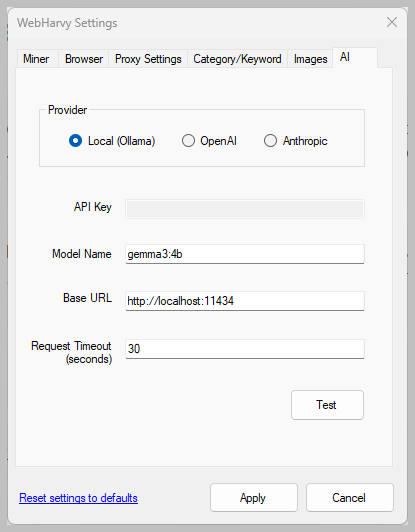
WebHarvy Settings now include an AI tab where you can configure connections to local and cloud AI assistants (LLMs).
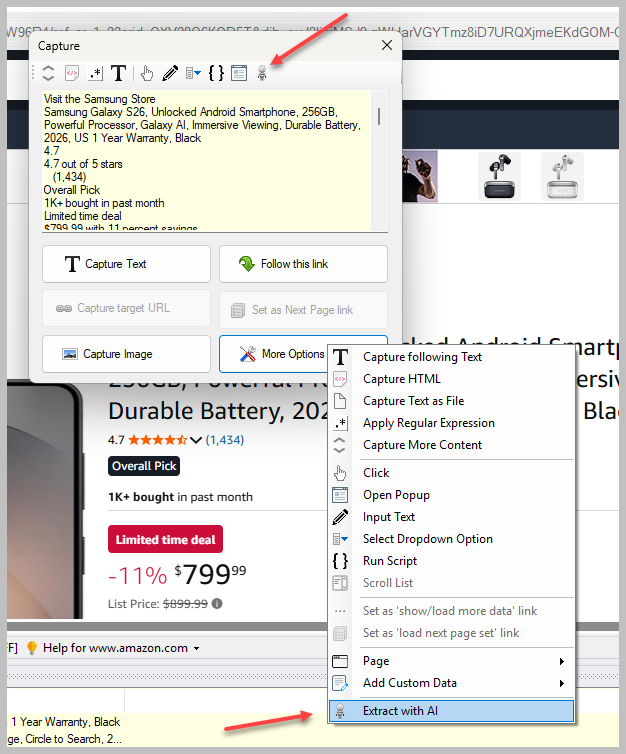
Once configured in Settings, AI assisted extraction can be performed by clicking anywhere on the page during configuration and selecting the ‘Extract with AI’ option from under ‘More Options’.
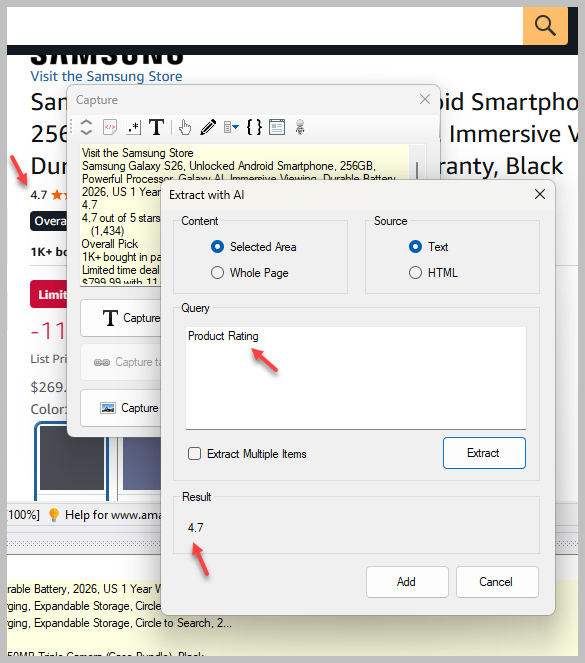
In the resulting window, you can select the area from which to extract data (area highlighted using mouse or from the whole page) and whether to extract it from the displayed text or from the HTML code behind the content.
Troubleshooting Wizard
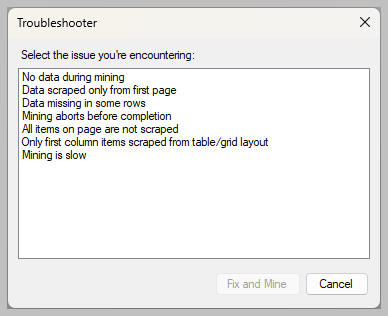
A new troubleshooting wizard has been added to the Miner window to guide you through resolving commonly encountered mining issues, such as missing data, slow extraction, and pagination problems.

Simply select the issue you are facing, and the tool will inspect your configuration and automatically adjust it to fix the problem.
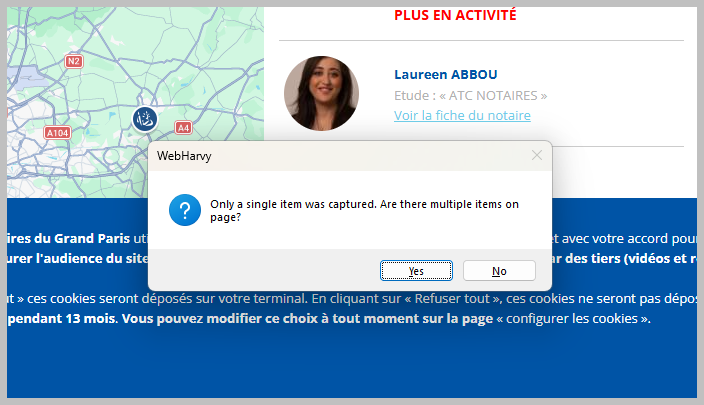
In addition to the troubleshooting wizard, WebHarvy now automatically detects common issues during configuration and proactively notifies you when they occur. For example, if a page contains multiple items to be extracted but only a single item is captured in the preview during configuration, WebHarvy alerts you to the issue and offers to automatically correct it based on your feedback. This helps identify and resolve potential problems early, reducing errors and improving extraction accuracy.
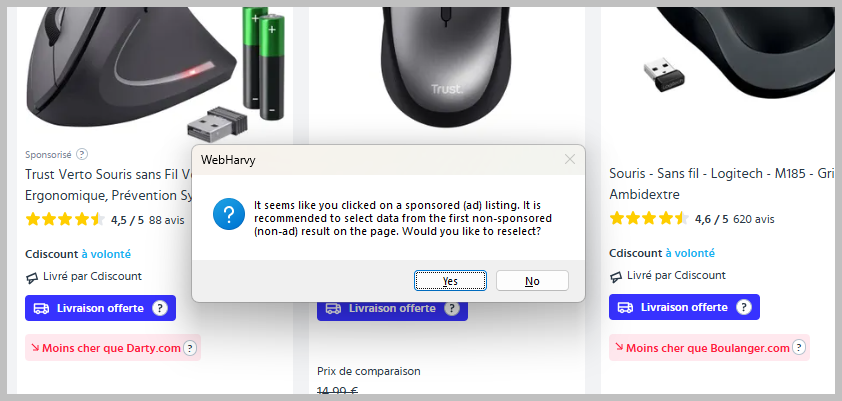
If you accidentally select data from a sponsored listing (ad), WebHarvy notifies you of the issue and prompts you to select data from the first regular listing on page.
Support for non-standard database ports
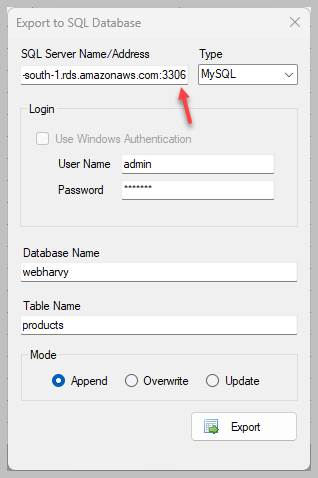
When exporting data to a database, you can now specify the port number directly in the server address using the following format.
address:port
If no port number is specified, WebHarvy will automatically use the default port for the selected database.
Other Changes
- The settings link in the Miner window can be used to edit configuration settings independently, without changing global settings.
- Improved MySQL Unicode Support – Fixed an issue affecting Unicode character support when exporting data to MySQL databases.
- Full-Page Screenshot Fix – Fixed an issue where full-page screenshots were not being captured correctly.
- Simplified Page Reload During Configuration – If a page needs to be reloaded during configuration, clicking the browser’s Reload button will now automatically invoke the equivalent of More Options → Page → Reload within the Capture window.