
Target is one of the largest retail chains in the United States, where customers can shop a wide range of products including electronics, clothing, groceries, home essentials, beauty products, toys, and more. Target.com is the online eCommerce website of Target. In this article you will learn how to scrape product data from Target.com using WebHarvy.
Product details including name, price, reviews, rating, images, specifications, product description etc. can be easily scraped from Target.com using WebHarvy. WebHarvy is a generic web scraping software which can scrape data from any website including eCommerce websites of Amazon, Walmart, Target, BestBuy etc.
Install WebHarvy
WebHarvy is a desktop application which can be locally installed in your computer. You may download and install the free trial version of WebHarvy.
WebHarvy allows you to select the data which you need to scrape from a webpage by just clicking over them. It is one of the easiest web scrapers to use. Being a desktop application, there is no need to even create an account. Just download, install and scrape – you should be able to scrape data within 2 minutes of installing the software.
Video
The following video shows how WebHarvy can be used to scrape data from Target.com product listings.
As shown in the above video, scraping data from Target.com is very easy using WebHarvy. The entire workflow is designed for ease of use.
Step-by-Step Guide
After downloading and installing the free trial version of WebHarvy in your computer, please follow the steps explained below (as shown in the video above) to scrape product data from Target.com
Starting Configuration
Load the page from which you need to scrape data within WebHarvy’s browser.
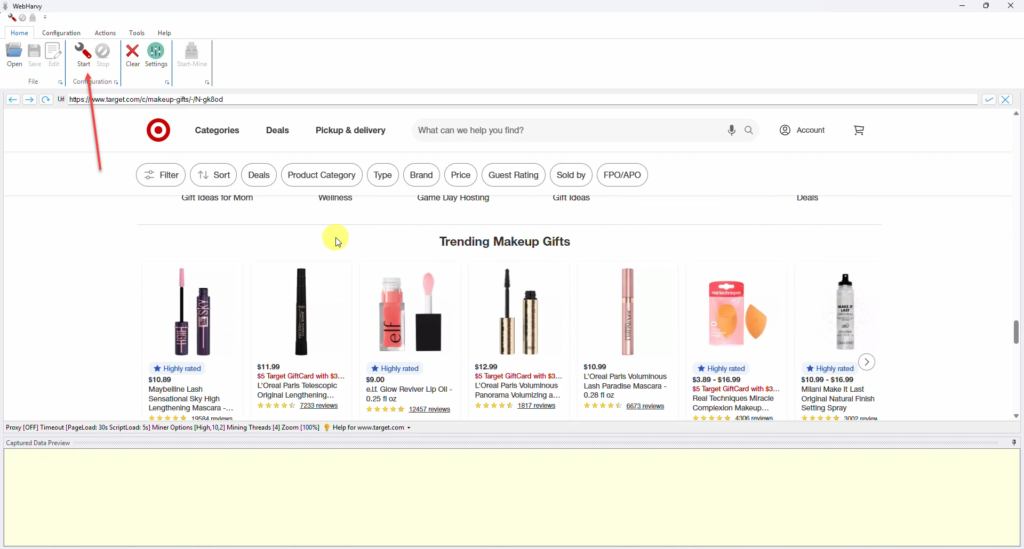
Click on the Start button in main menu to start configuration. Once in configuration mode, you can click and select the data which you need to scrape.
Ref: Loading Page and Starting Configuration
Selecting Data
To select a data item like product name or price for extraction, click over it. WebHarvy will display a Capture window with various options. Select the Capture Text option to scrape the text of the selected item.
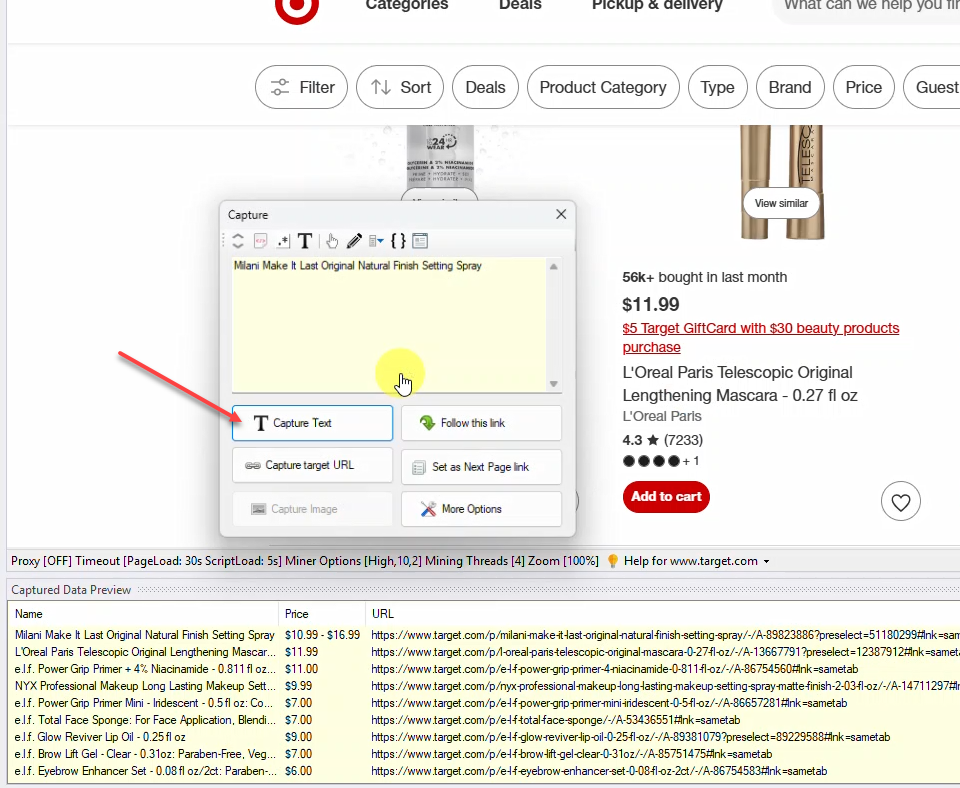
Ref: Various ways to select data during configuration
Scraping Data from Multiple Pages
To configure pagination, scroll down to the end of the page and click on the link to load the next page of listings. Select the Set as next page link option from the Capture window. WebHarvy will scrape the data which you select from the starting page, from multiple pages of listings automatically.
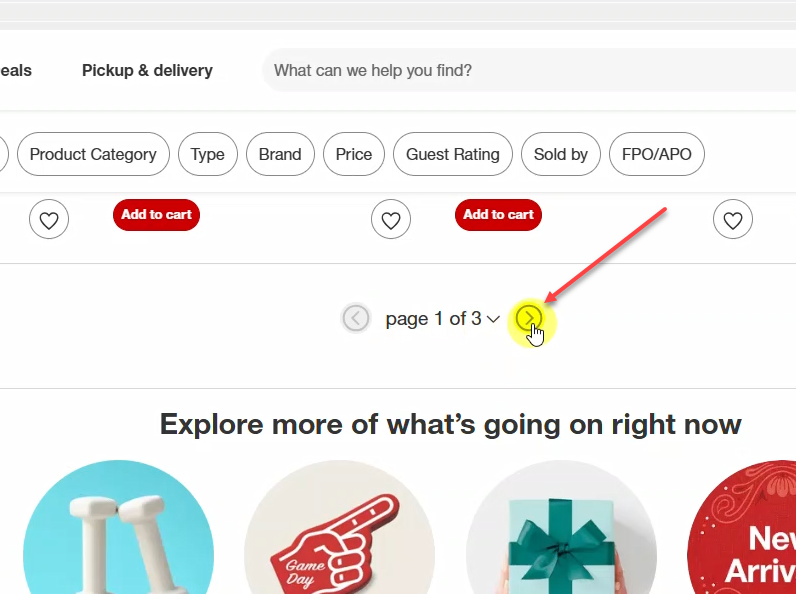
Ref: Scraping data from multiple pages | Handling Pagination
Following Links
To scrape product details, click on the title/link of the first product and select the Follow this link option. This will load the product details page. Wait for the page to load and then you can click and select more data, just like how you did on the starting page.
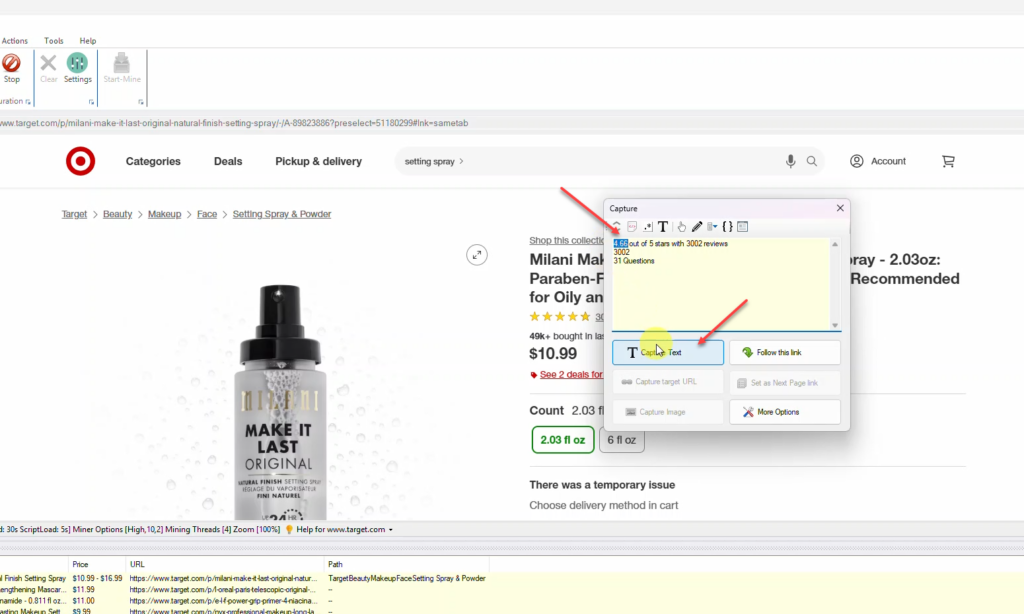
Details like product category path, rating, reviews, description etc. can be selected from the product details page in this method. If you do not wish to scrape the entire block of text displayed in the preview area of the Capture window, you can highlight the required portion using the mouse, before clicking on the Capture Text button, as shown in the above image. WebHarvy can scrape data from the displayed text as well as from the HTML code behind the page.
Ref: Following links and Scraping Data
Scraping Product Images
In addition to scraping text and HTML, WebHarvy also supports downloading images from web pages. To select an image displayed on the page for extraction, click over it and select the Capture Image option from the Capture window. To scrape multiple product images, follow the steps below.
- Click over the first image
- Select Capture HTML
- Apply RegEx to select the full size image URL
- Click the main Capture Image button
- Select Yes when WebHarvy asks whether to download multiple images
Please refer to the video displayed at the start of this article for more details.
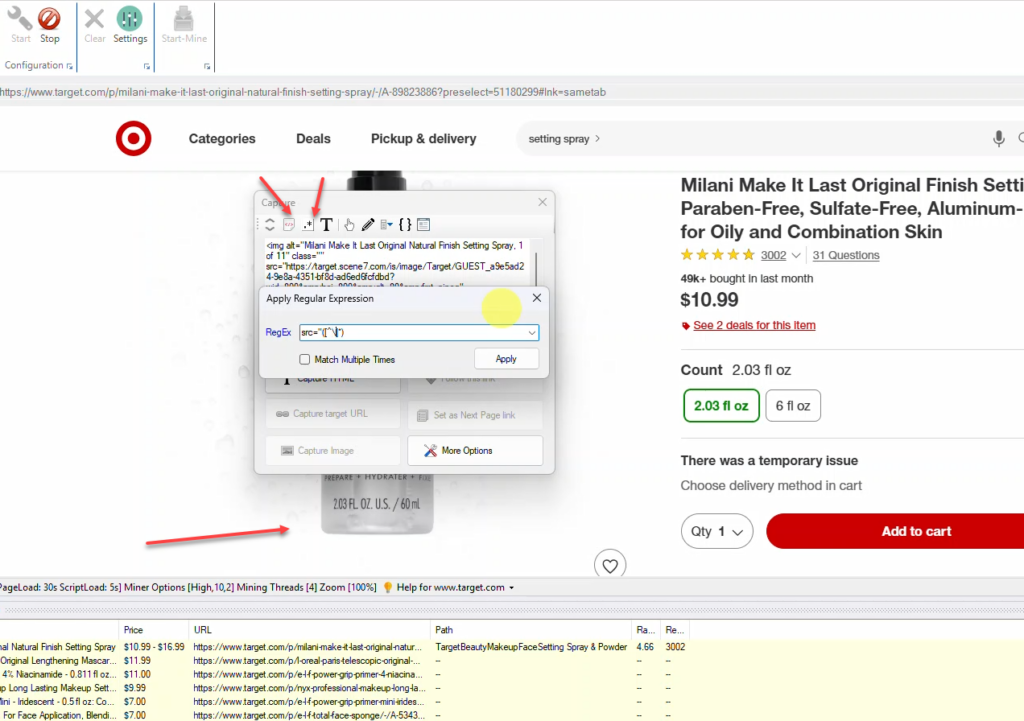
Ref: How to Scrape Multiple Product Images?
Scraping Data
Once you have selected all the required details from the page, Stop Configuration. You may now optionally Save the configuration so that it can be run later, edited to make changes or scheduled for automatic periodic extraction.
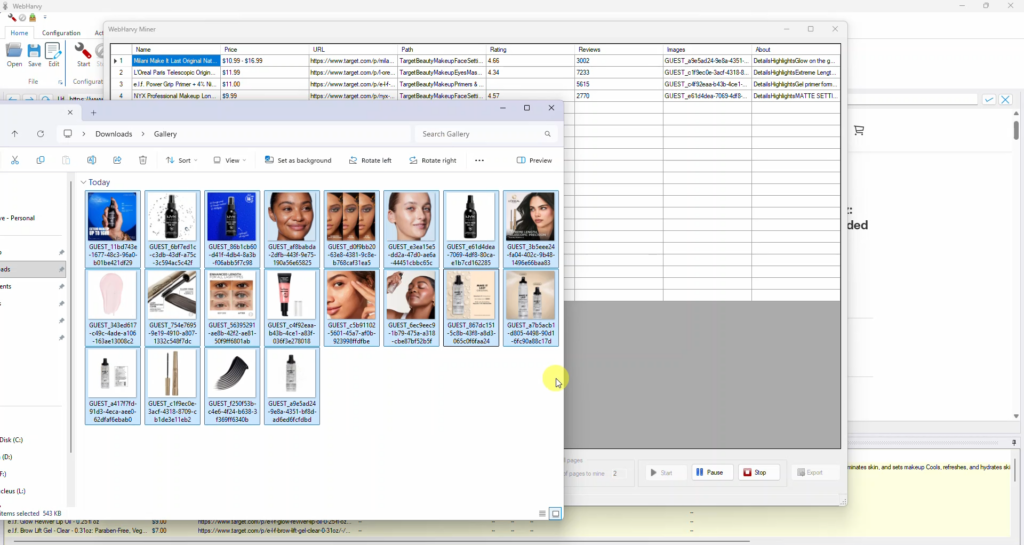
The scraped data can be saved to a spreadsheet file or database.
Ref: Various ways to export scraped data
Related
- eBay Data Extraction | How to Scrape eBay Product Data to Excel?
- Web Scraping Home Depot Product Data
- Scraping Shopee Product Data
- Scraping BestBuy Product Data Without Coding
- Scraping Walmart Product Data – Images, SKUs and Pricing
- How to scrape product data from Amazon ?
- Scraping Product Data from AliExpress
- Alibaba Product Data Scraping