
In this article, you will learn how to scrape business contact details from 11880.com website, which is an online German business directory.
Contact details including name, address, phone and email can be extracted from search results corresponding to any keyword at 11880.com website. You may also submit multiple keywords (list of keywords) and scrape data from search results corresponding to each keyword using the Keyword Scraping feature of WebHarvy. The pagination feature helps you scrape data from multiple pages of search results.
WebHarvy for scraping business leads
WebHarvy is a visual web scraping software which can be used to scrape data from any website, including business directories like Yellow Pages, Gelbeseiten.de, 11880.com etc. Using WebHarvy’s point and click data selection interface, you can easily select the data which you need to scrape from websites.
WebHarvy is a desktop application which you can download and install locally on your PC. Unlike cloud based web scrapers, the full version of WebHarvy does not require monthly subscription payment, and does not impose any limits on the amount of data which can be scraped. WebHarvy licenses are one-time purchases.
Step-by-step guide of scraping 11880.com using WebHarvy
The following video shows how WebHarvy can be used to scrape business leads from 11880.com search results.
Starting Configuration
WebHarvy’s user interface resembles a web browser. The first step is to load the page from which you need to scrape data within WebHarvy’s browser. In this case, it means loading 11880.com and performing a search using the keyword which you are interested in.
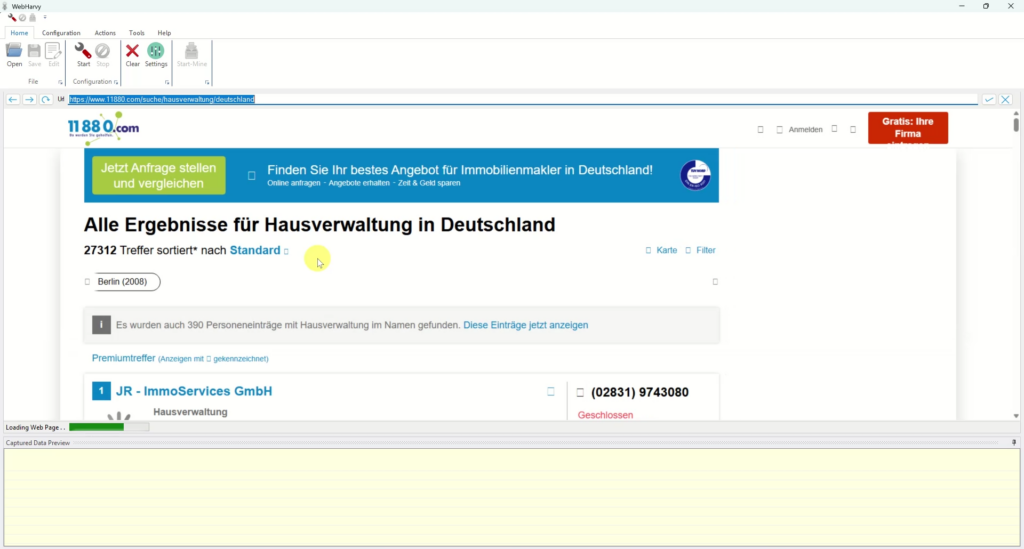
Click the Start button in the Home menu to Start Configuration. Now, you can click and select most of the data which you need to scrape.
Refer: Loading Page & Starting Configuration
Selecting Data
To select any data item (Text or Image) displayed on the page for extraction, click over it. WebHarvy will display a Capture window with various options. Select the Capture Text option to select the text of the selected item for extraction. Details like business name, location, address and phone can be selected from the search results page using this method.
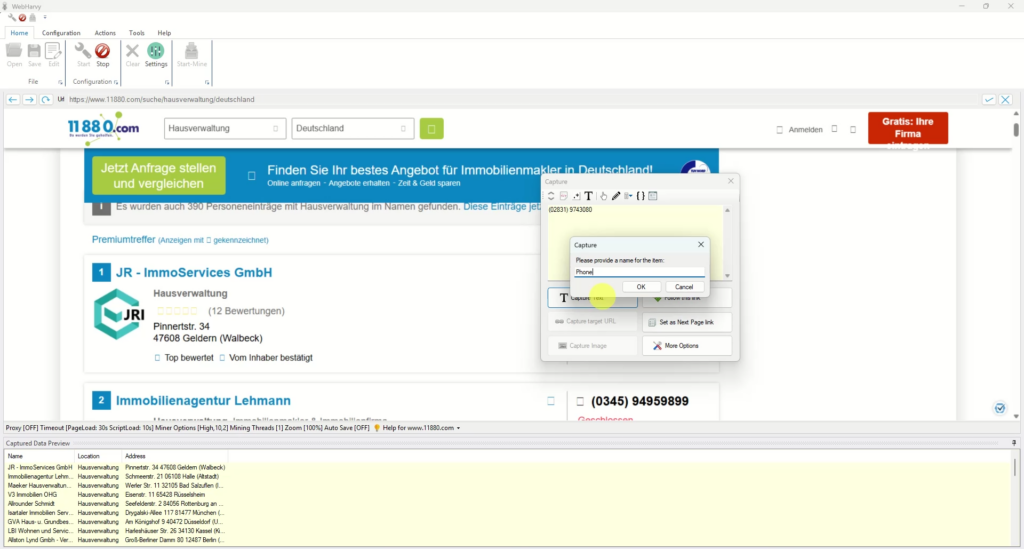
Refer: Selecting Data to Scrape
Scraping Email Addresses
To scrape the email addresses of businesses, position the mouse cursor such that the entire right side pane of the first search result box is highlighted, and click.
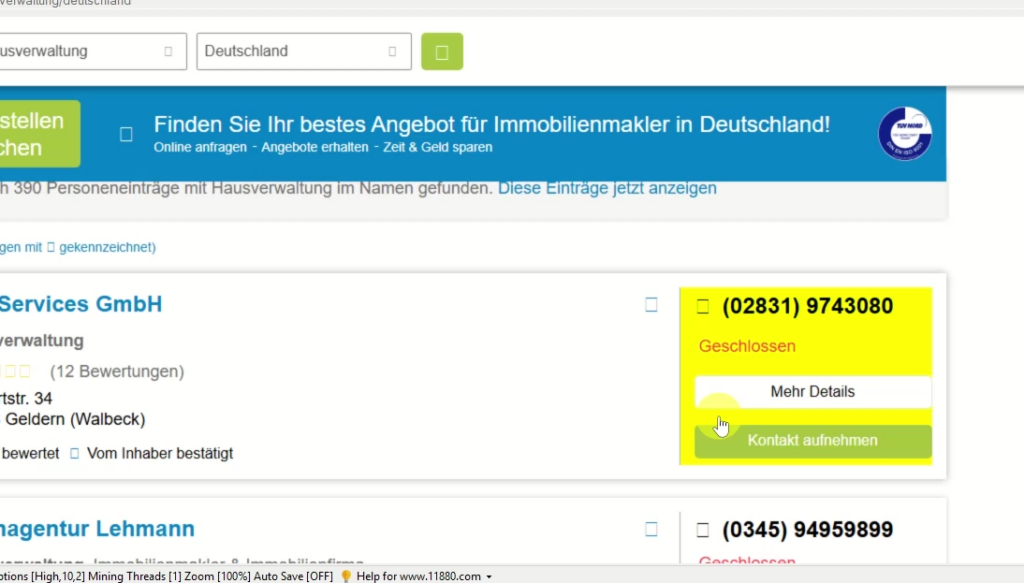
From the Capture window displayed, select Capture HTML option. Apply the following Regular Expression string on the HTML to get the business email address.
mailto:([^\?]*)Click the main Capture HTML button to select email address for extraction.
Refer: How to Scrape Email Addresses from any web page?
Handling Pagination
To scrape data from multiple pages of search results (pagination), scroll down the page and click on the direct link to load page number 2. From the Capture window displayed, select the Set as Next Page Link option.
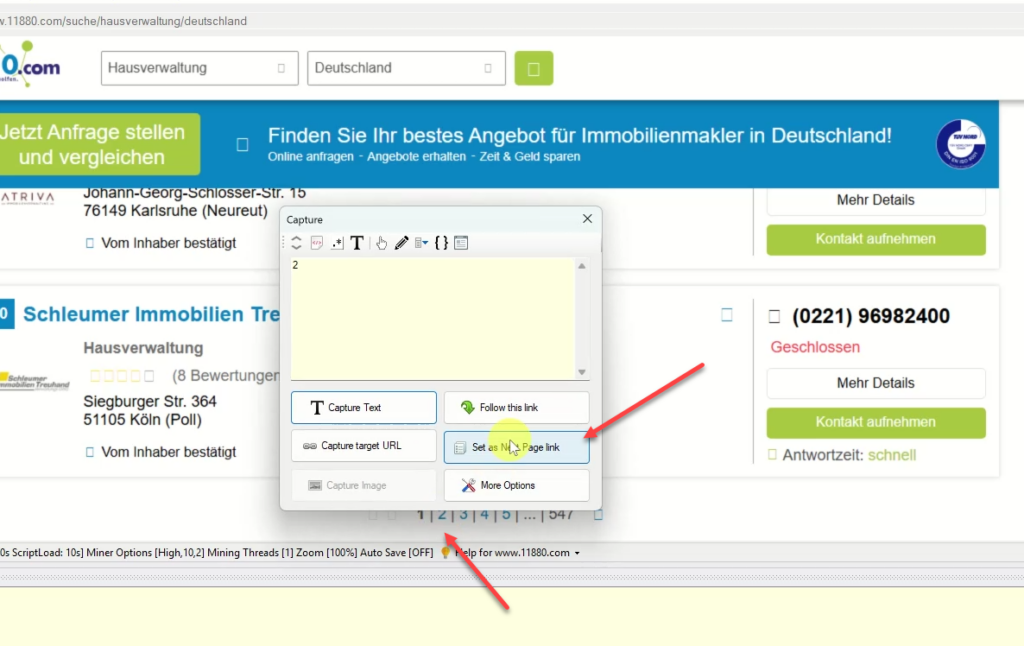
Refer: Scraping Data from Multiple Pages
Starting Mining
Once you have selected all required data, Stop Configuration. Start Mine to start scraping data using the configuration created.
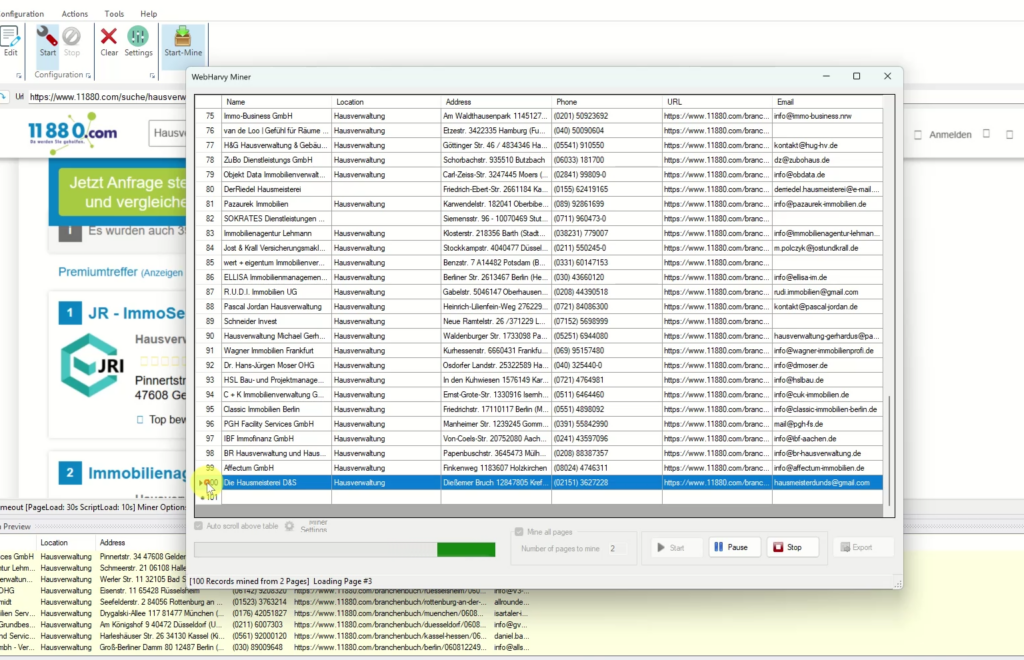
The mined data can be saved to a file or database.