
In this article you will learn how business contact details can be extracted from Herold.at website by employing the technique of web scraping. Business details like Name, Address, Phone, Email and Website can be extracted from herold.at website using WebHarvy, a visual web scraping software.
Lead generation by scraping business directories is very easy while using WebHarvy. WebHarvy allows you to select the data which you wish to extract via simple mouse clicks. The scraped data can be saved to a file or database. Various file formats and database types are supported.
Step-by-step Guide
The following are the steps which you need to follow to scrape business contact details from herold.at using WebHarvy.
Step 1 : Download and install WebHarvy in your computer
WebHarvy is a local web scraping software which can be installed in your computer. A free 15-days trial version of WebHarvy is available at https://www.webharvy.com/download.html.
Step 2 : Open WebHarvy and load the page from which you need to scrape data
Open WebHarvy and load the page at herold.at from which you wish to scrape data. WebHarvy contains a built-in browser using which you can load and navigate web pages.
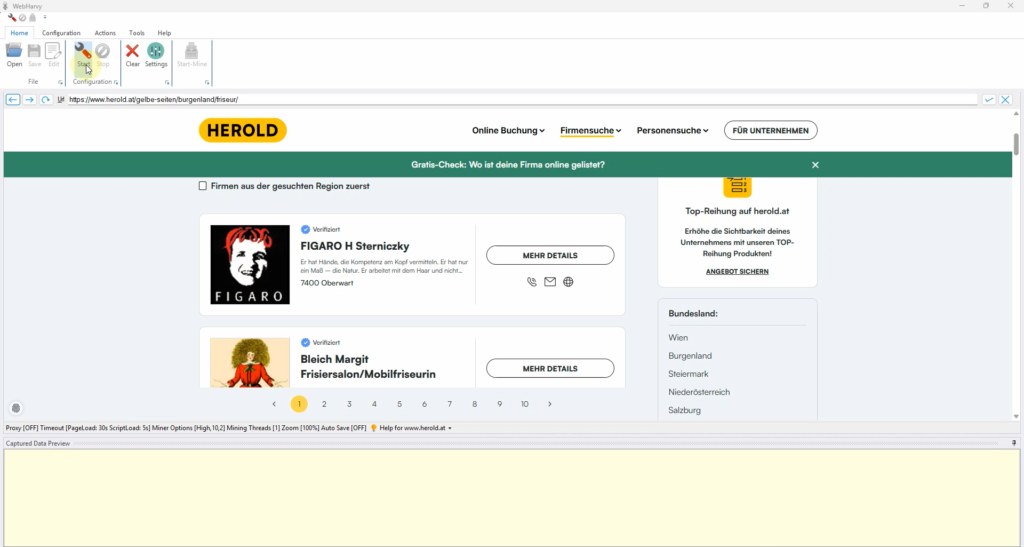
Step 3 : Start Configuration and Start Selecting Data
Click the Start button in the Configuration pane of Home menu to start configuring the scraper. To select any data item displayed on page for extraction, just click over it. WebHarvy will display a Capture window with various options. Select the Capture Text option to scrape the text of the clicked item. Details like business name, short description etc. can be selected from the business listings page by following this method.
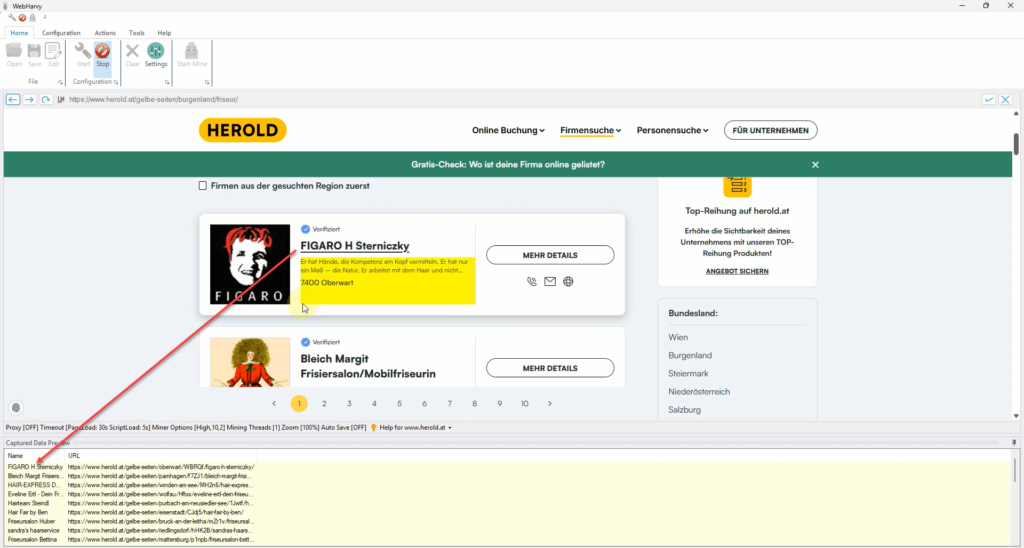
Step 4 : Configuring Pagination
To scrape data from multiple pages of listings, click on the direct link to load page number 2. Select the Set as next page link option from the resulting Capture window.
Step 5 : Follow link and select more details
To select more business contact details, click over the title/link of the first business listed on page and select the Follow this link option from the resulting Capture window. Wait for the business details page to load. Once loaded you can click and select more details. Details like address, phone number, website address etc. can be selected for extraction from this page.
To reveal the phone number, click over the ‘RUFNUMMER ANZEIGEN’ button and select the Click option.
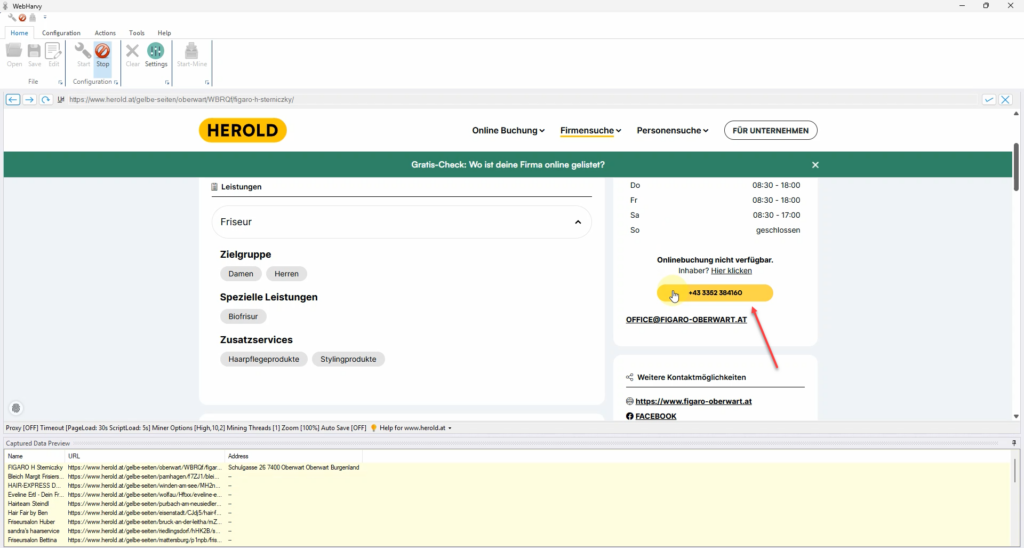
Once revealed, you can directly click over the phone number string and select the Capture Text option from the Capture window.
Step 5 : Scraping Data
Once all required data has been selected, click the Start Mine button to start scraping data using the configuration which we created.
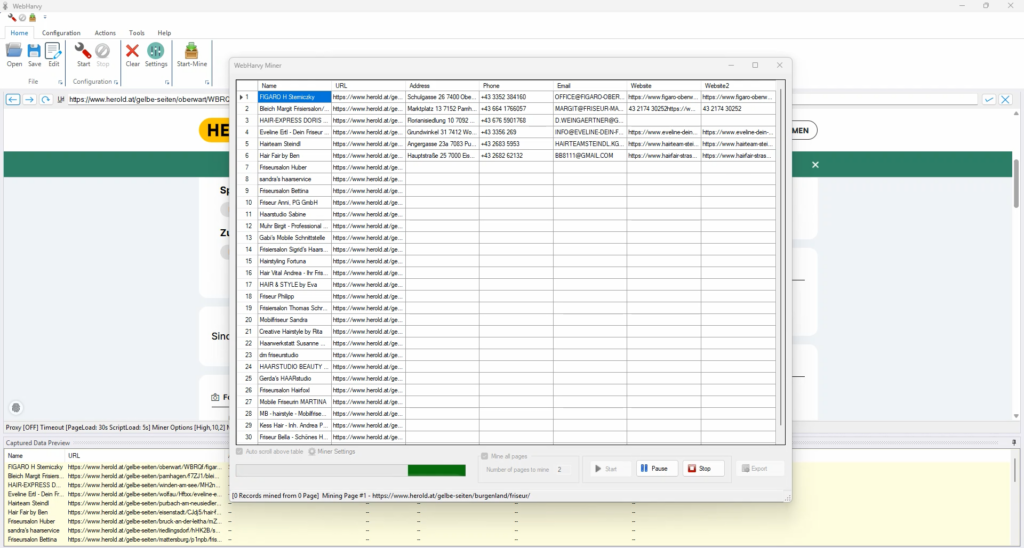
Video Demonstration
The following video demonstrates the steps in detail.
Download and Try
We highly recommend that you download and try the free evaluation version of WebHarvy to scrape business contact data from herold.at website. To get started, please follow the link shared below.