
DoorDash is one of the largest food delivery platforms which connects local restaurants, grocery stores and more with millions of customers across several countries including United States, Canada, Australia and New Zealand. In this article, you will learn how WebHarvy can be used to scrape restaurant data from DoorDash website.
Using WebHarvy to Scrape DoorDash
WebHarvy is a visual web scraping software that lets users select data from websites via a simple point-and-click user interface. WebHarvy intelligently identifies repeating data on a page, such as lists, tables, search results etc. Web pages typically have a well structured internal layout, which helps HTML parsers extract data easily in to a data table that can later be exported as a spreadsheet file or database file.
Video Demonstration
Video displayed below demonstrates how WebHarvy can be configured to scrape restaurant data from DoorDash website.
Challenges for Scraping DoorDash
The restaurant listings page of DoorDash has a slightly complicated internal structure. A web scraper’s objective is to scrape all items listed on the website, spanning across mulitple pages (pagination), without missing any data. In order to acheive this, we need to normalize the internal page structure of DoorDash, which requires running some JavaScript code on the page. The detailed steps are given below.
Step-by-Step Guide
1. The first step is to download and install WebHarvy on your computer.
2. Open WebHarvy and load the restaurant listings page at DoorDash within WebHarvy’s browser. It is recommend that you copy the URL/address of this page from a normal browser and load it directly within WebHarvy rather than loading the index page and performing search in WebHarvy’s browser.
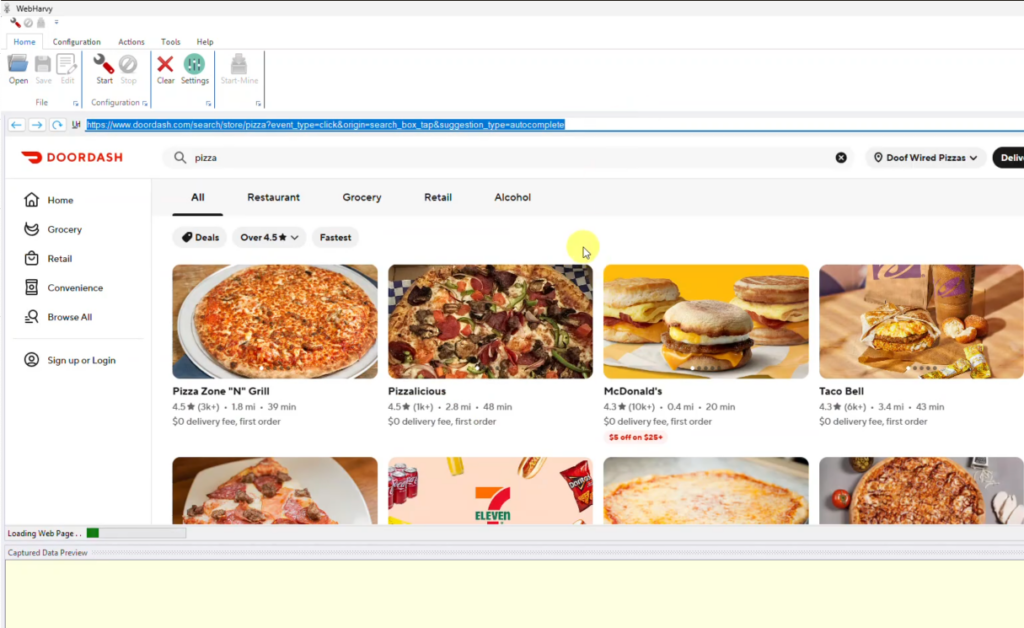
3. Open WebHarvy Settings and click on Advanced Miner Options button. Select value 3 for ‘Minimum number of items required in a list’ option and Apply changes.
4. Start Configuration
5. Select Disable pattern detection option under Configuration menu
6. Click anywhere on the page and select More Options > Run Script option. Paste and apply the following code.
group = document.querySelector('[data-testid="StoreCarouselContainer"]');
main_group = group.nextElementSibling;
main_group.scrollIntoView();
7. Repeat the same step again, by using the following code
group = document.querySelector('[data-testid="StoreCarouselContainer"]');
main_group = group.nextElementSibling;
main_items = main_group.children[0].children;
for (i = 1; i >= 0; i--) {
	main_group.children[0].removeChild(main_items[0]);
}
8. Click on Set JavaScript option under Pagination pane of Configuration menu and paste the above code (same as in step 7) and Apply changes.
9. Enable patterns back (reverse of step 5)
10. Now you can start selecting data. Details like restaurant name, distance, rating etc. can be selected for extraction by just clicking over the item text and by selecting the Capture Text option.
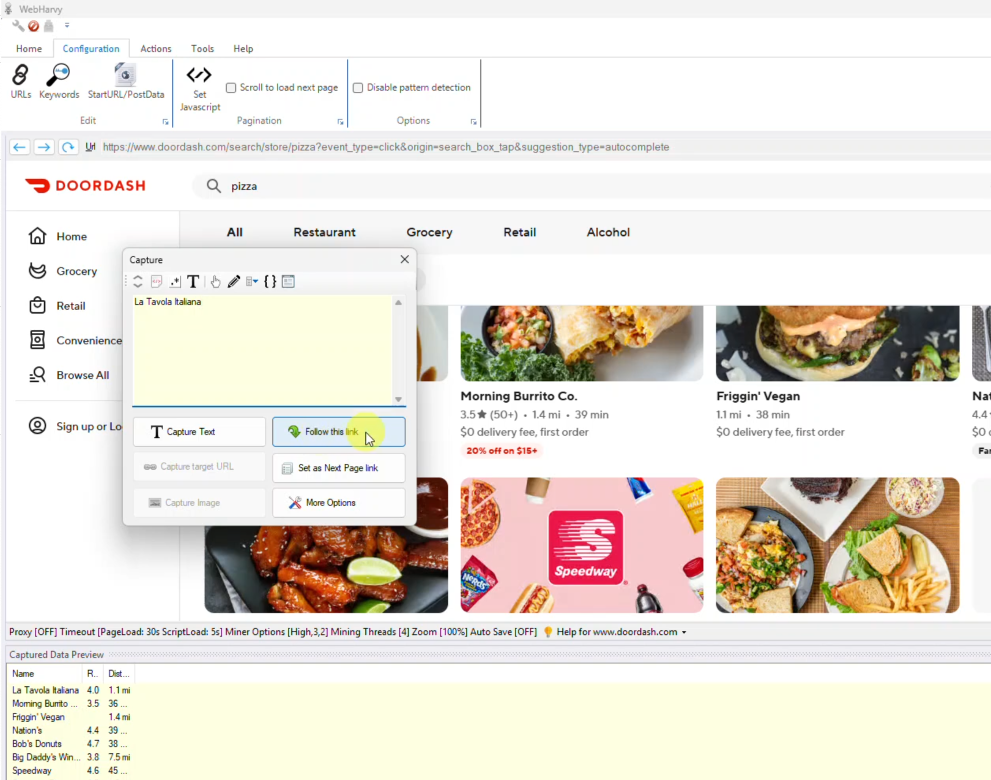
11. You can use the Follow this link option to open each restaurant details page and scrape additional data.
12. Stop Configuration, when you can have selected all required data
13. Start Mine
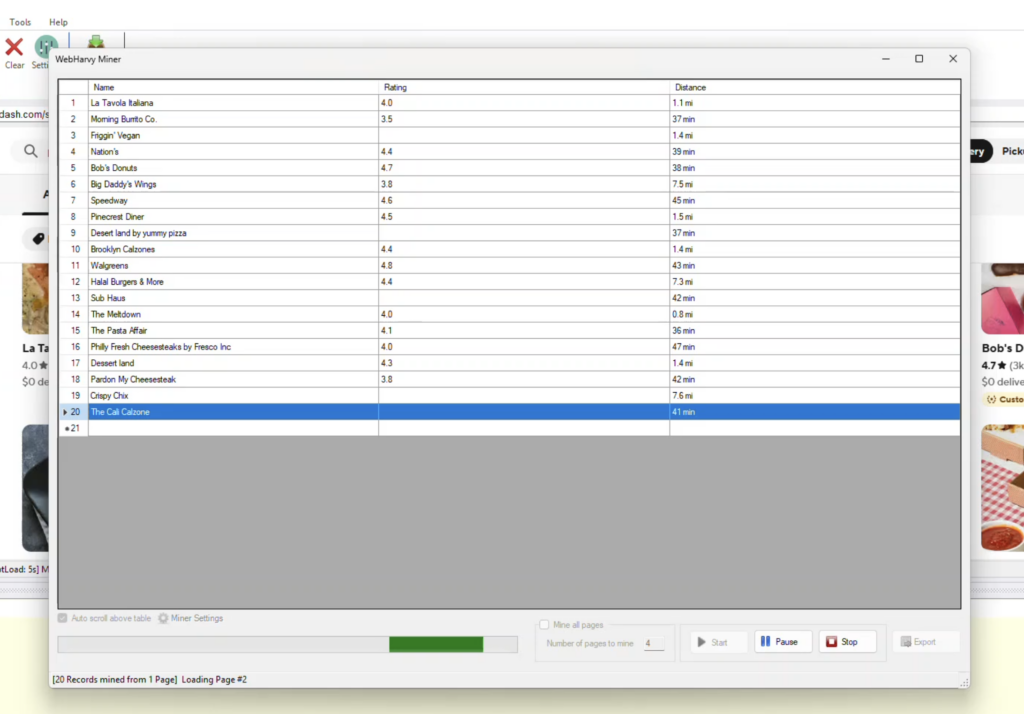
14. When mining completes, the mined data can be exported to a file or database.
Need Support
In case you need assistance in configuring WebHarvy to scrape data from DoorDash or any other website, please do not hesitate to reach out to our support.