
This step-by-step guide shows how to scrape live scores and player statistics from WhoScored.com using WebHarvy, including an updated video tutorial.
WebHarvy is a visual web scraping software that lets you easily select the data you want to scrape from the WhoScored.com website using simple mouse clicks. There is no need to write any code or scripts to scrape the data.
Contents
Scrape WhoScored.com Live Scores
To start scraping data, first load the WhoScored.com home page in WebHarvy’s built-in browser, as shown below. Then click the Start button in the Home menu to begin the configuration process. You can now select the data you want to scrape from the page by simply clicking on it.
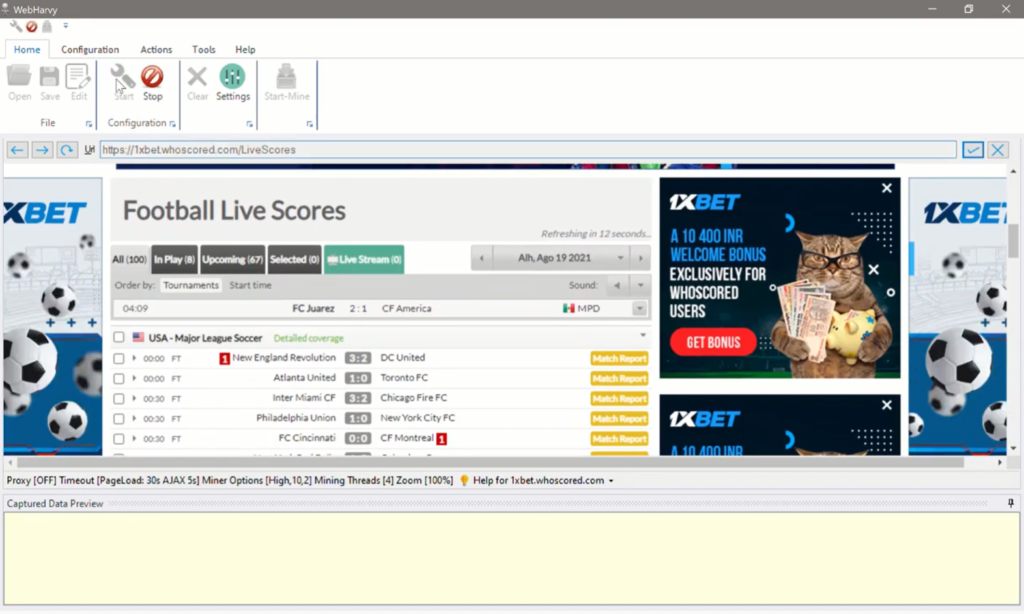
To select any data, simply click on it. WebHarvy will display a Capture window with various options. To capture the selected item’s text, click the Capture Text option. In the resulting window, you can assign a name to the data column. WebHarvy will automatically detect patterns on the page and group similar data under the same column. You can preview the captured data in the Preview pane.
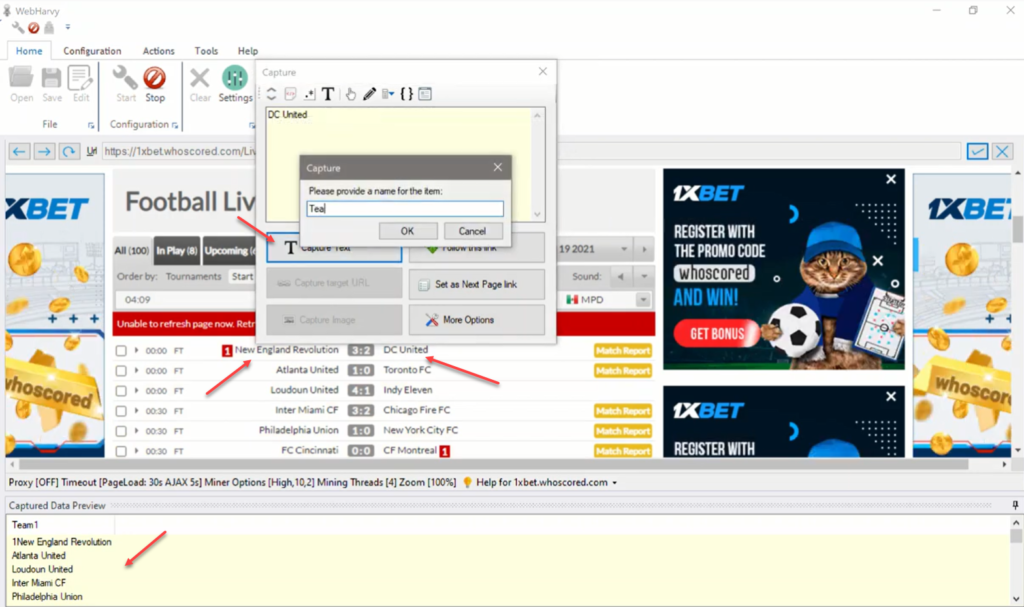
Scrape match data by following links
Once you have selected all required data from the starting page of the configuration, you can follow each match link to load its details page. Click on the link you need to follow and select the Follow this link option from the resulting Capture window.
Wait for the match details page to load. Once loaded, you can click and select additional data. The Capture following text option in the Capture window will help you accurately select match details such as score, elapsed time, half-time/full-time score, date, and match summary.
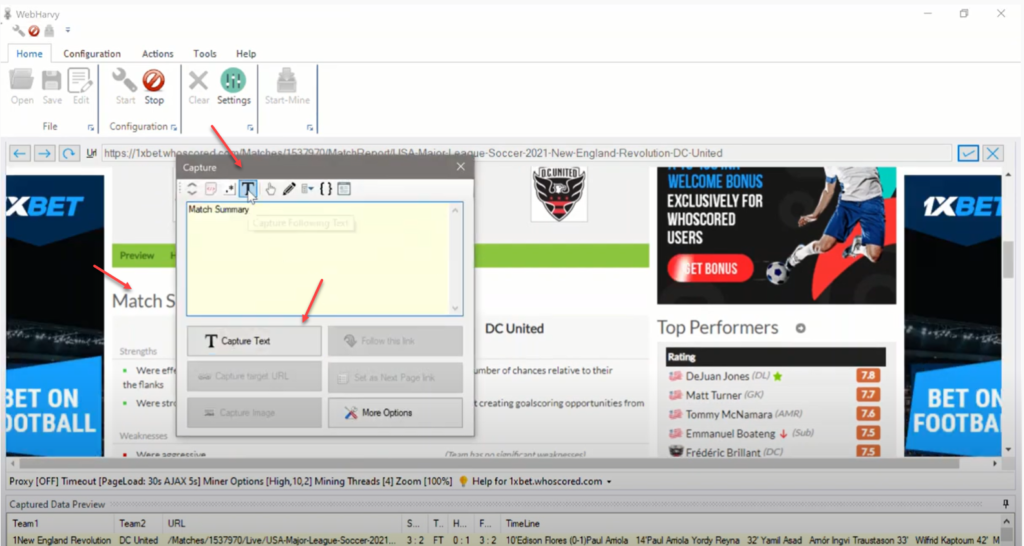
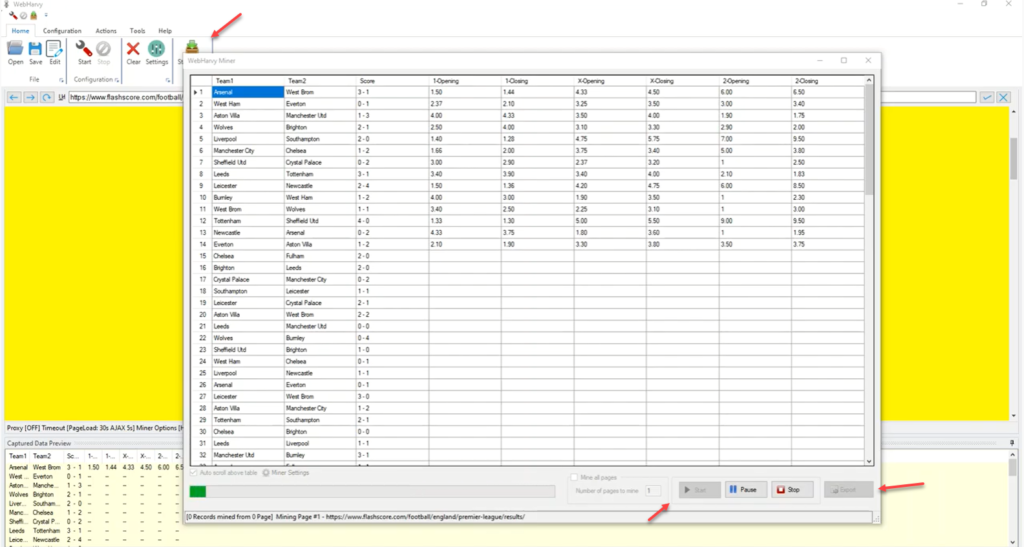
After selecting all required data from the details page, stop the configuration process by clicking the ‘Stop’ button in the Home menu. You can now save the configuration. Click the ‘Start Mine’ button to begin scraping data. WebHarvy allows you to export the scraped data to a file or database.
Video
The following video explains in detail the configuration process which you need to follow to scrape data from whoscored.com website.
The Regular Expression string used in the video to follow each match link from the starting page to load its details page is given below.
href=”([^”]*)
Scraping Player Statistics
Learn how to scrape player stats for each team in a league from WhoScored.com using WebHarvy. Video displayed below demonstrates extracting key performance metrics such as appearances, minutes played, goals, assists, cards, ratings, and other essential player details – without writing any code.
Try WebHarvy
We highly recommend that you download and try using the 15 days free evaluation version for WebHarvy available in our website. Follow the link below to get started.
If you have any questions, please do not hesitate to reach out to us.