
Home Depot is the largest home improvement retailer in the world that offers an extensive selection of products, including building materials, appliances, tools, flooring, lighting, plumbing fixtures, garden supplies etc. In this article you will learn how to scrape product data from Home Depot website (https://www.homedepot.com).
Web Scraping is the process of automatically extracting large amounts of structured data from websites via software automation. Instead of manually copying and pasting the data from websites, a web scraping software automates the process of data extraction from thousands of web pages. (Know more: What is Web Scraping?)
WebHarvy for eCommerce data Extraction
WebHarvy is an easy to use, visual web scraping software which can be used to scrape data from any website, including eCommerce websites like www.homedepot.com. WebHarvy allows you to select the data which you need via simple mouse clicks. Product data from multiple product categories can be easily extracted into a spreadsheet or database. (Know more)
Step-by-step Guide to Scraping Home Depot Product Data
Below is a step-by-step guide to scraping product data from the Home Depot website using WebHarvy.
Step 1 : Download and Install WebHarvy
WebHarvy is a desktop application which can be installed locally on your computer – https://www.webharvy.com/download.html. We offer a free 15 days trial version of WebHarvy so that you can try using the software to make sure it solves your data extraction requirements.
Step 2 : Navigate to the page displaying the data which you need to scrape
When you open WebHarvy, you will see a browser like user interface in which you can load and navigate web pages. Load the target website (Home Depot) and navigate to the page which displays the data which you need to scrape. In this case, perform a search after loading www.homedepot.com and navigate to the product listings page.
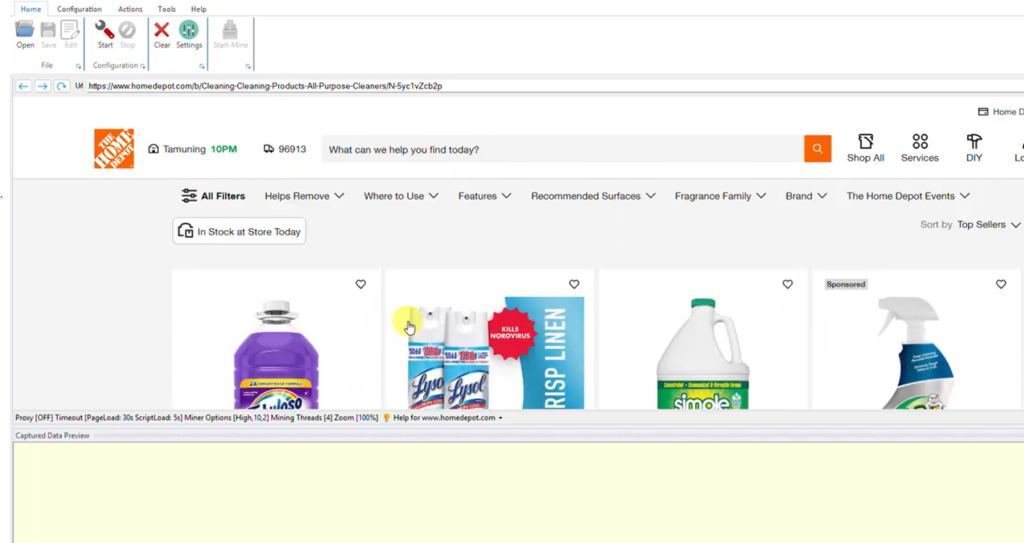
Step 3 : Settings for Home Depot
For scraping Home Depot website using WebHarvy, you will need to make the following setting changes. Open WebHarvy Settings and click on the Advanced Miner Options button and make the following changes.
- Data selection accuracy > set to low
- Minimum number of items required in a list > set to 2
- Number of levels higher in HTML DOM to search for the next item > set to 1
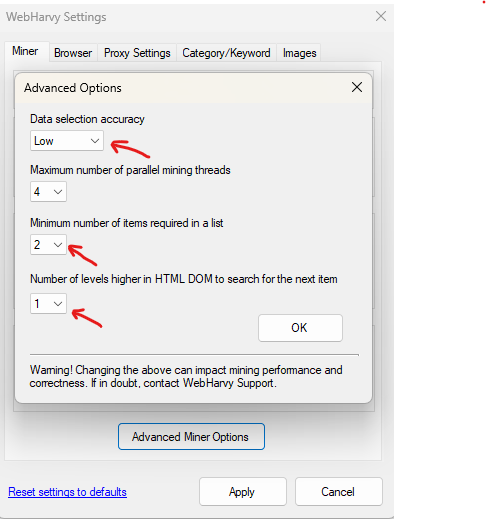
After applying the above changes, you can start configuration.
Step 4 : Start Configuration
Click on the Start button under Configuration pane in the Home menu to start configuration. Now you can click an select the required data items from the page, configure pagination, follow links from the starting page to scrape more product details etc.
Step 5 : Scroll to bottom
The product listings page at Home Depot website loads all products only when the user scrolls down to the end of the page/listings. To simulate this action click on the title/name of the first product and select More Options > Scroll List from the resulting Capture window and wait till WebHarvy smoothly scrolls the product listings to the end.
Step 6 : Configure Pagination
Since the listings span across multiple pages, there are pagination links at the bottom. Click on the direct link to load page number 2 and set it as the next page link. (More Details)
Step 7 : Start selecting data from the listings page
Now you can start selecting data from the listings page. To select any item (text or image), just click over it. WebHarvy will display a Capture window with various options. Select the Capture Text option to scrape the text of the selected item. Details like product name, price, rating, reviews etc. can be selected from the product listings page using this option.
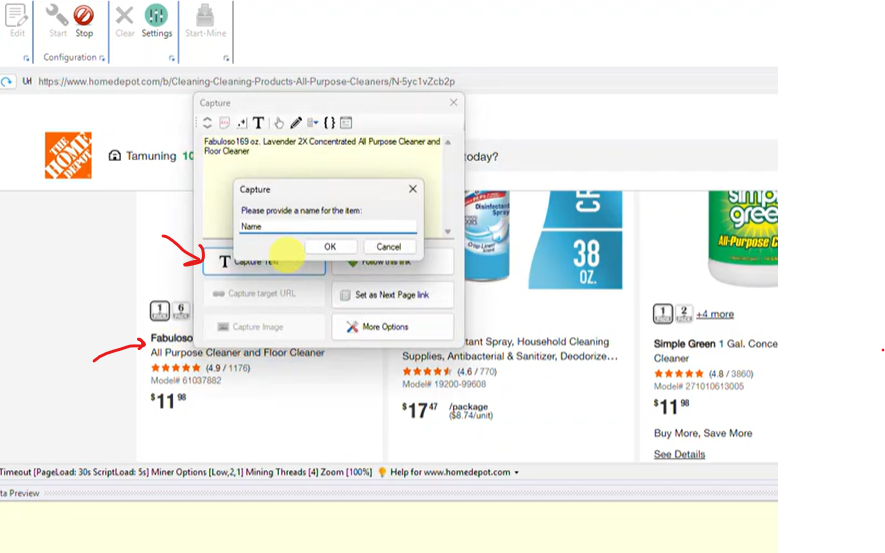
Know more: Various ways to select data and interact with the page
Step 8 : Follow product link to select more product details
You can follow each product link to load its details page from where additional data can be selected. For this, click on the title/link of the first product and select the Follow this link option from the Capture window. Wait for the product details page to load. Once loaded, you can click and select more data including product specifications, images etc.
Know more: Following links while scraping data
Step 9 : Stop Configuration
Once you have selected all required data, click the Stop button in the Configuration pane of Home menu to stop the configuration process. You may now optionally Save the configuration so that it can be edited or run later.
Step 10 : Start Mine
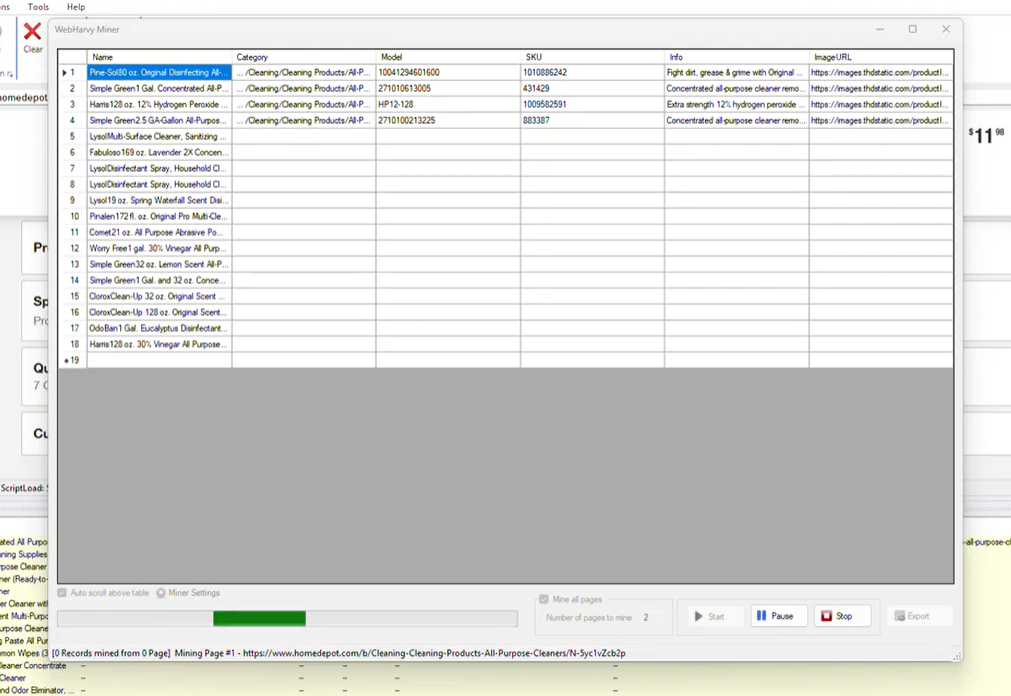
Click the Start Mine button to start mining data. WebHarvy will load the same product listings page for which we created the configuration and start extracting data. The mined data can be saved to a spreadsheet or database.
Video Demonstration
Video below demonstrates how WebHarvy can be used to scrape product data including item name, category, model number, SKU, product description, images etc. from homedepot.com.
Download & Try
In case you are interested, we highly recommend that you download and try our free 15 days evaluation verison. To get started, please follow this link.
If you have any questions, do not hesitate to request for support.