
EuroPages is one of the largest B2B directories in Europe, listing thousands of manufacturers, suppliers, and service providers across various industries. In this guide, we’ll walk through a practical approach to scraping company data from EuroPages and then visiting each company’s official website to extract publicly available contact emails.
Tool Used in This Guide: WebHarvy
In this guide, we use WebHarvy, a point-and-click web scraping tool that allows us to extract structured data without writing custom scraping code. WebHarvy is particularly useful for handling pagination, pattern-based extraction, and JavaScript-heavy pages, which makes it a good fit for scraping EuroPages.
How EuroPages Is Structured: Search Results, Company Pages, and Captchas
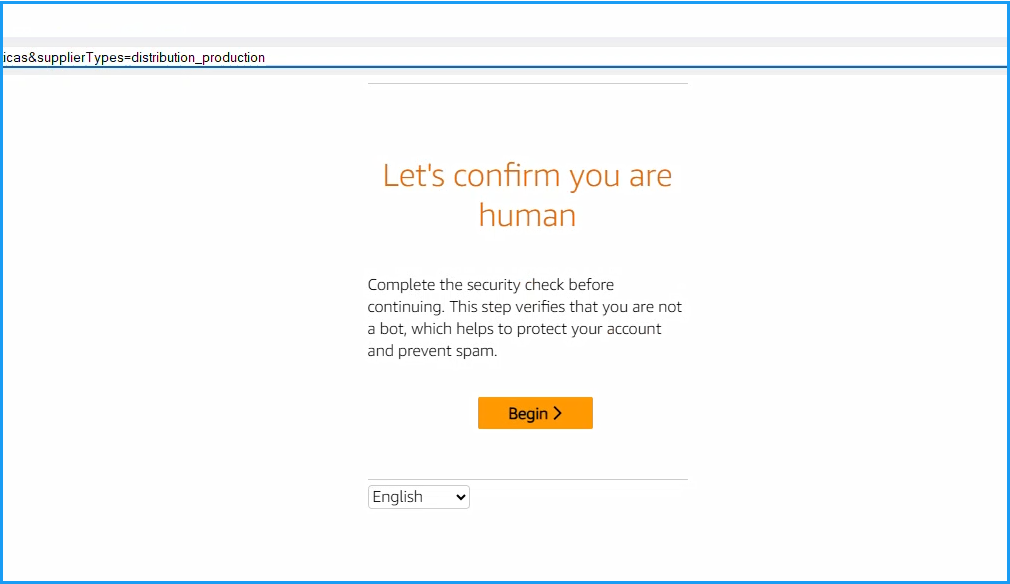
When you first load EuroPages website in your browser, you may encounter a human verification page where a CAPTCHA form is displayed (as shown below). You will need to manually solve this by clicking on the Begin button. Once solved, it will not be displayed again if you follow safe/anonymous scraping guidelines.
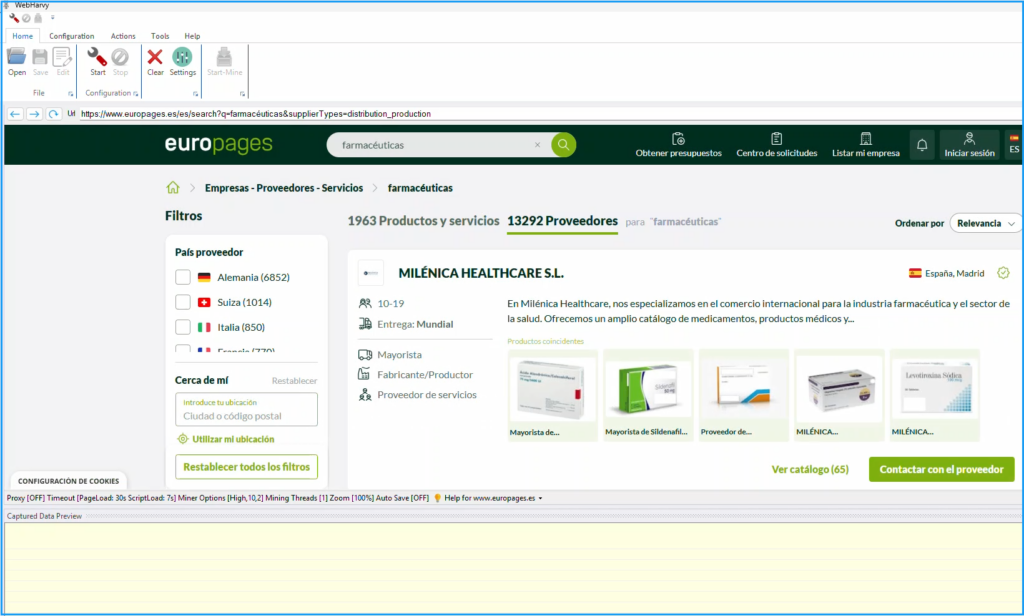
Once the website is loaded, you can search using a keyword or browse by category to view the company listings you’re interested in. The listings page displays basic information about each company. To access more detailed information, click the company name to open its dedicated company details page.
Video Walkthrough: Scraping EuroPages with WebHarvy
The following video demonstrates the steps which you need to follow to scrape company data including emails from europages.com website.
Step-by-Step Guide: Scraping EuroPages with WebHarvy
The following steps explain how to scrape company listings from EuroPages using WebHarvy. If you prefer a visual demonstration, you can refer to the video above. Otherwise, the instructions below provide a detailed breakdown of the same workflow, from selecting data fields to handling pagination and navigating company detail pages.
Step 1 : Download and Install WebHarvy
Download and install WebHarvy in your computer. We offer a free evaluation version which you can download from https://www.webharvy.com/download.html to try the software before purchase.
Step 2: Load EuroPages listings page
Open WebHarvy and load EuroPages company listings page either by performing a search or by browsing the category which you are interested in. If a CAPTCHA screen (human verification) is displayed, solve it manually within WebHarvy’s browser.
Step 3: Edit WebHarvy Settings to avoid detection and block while scraping data
Open WebHarvy Settings and make the following changes. Ref: https://www.webharvy.com/docs/settings.html
- Increase Script Load Wait Time to 7 or 10 seconds
- Enable ‘Add random pauses – Human Emulation Mode’
- Go to ‘Advanced Mine Options’ and select 1 for ‘Maximum number of parallel mining threads’
- Apply changes.
- If you have access to a proxy service, we recommend using it – https://www.webharvy.com/docs/scraping-via-proxy-servers.html
Step 4: Start Configuration and start selecting data
Click the Start button under Configuration pane in Home menu to start configuration. You can now click and select any data item displayed on page. Click on the title of the first company listed and select the Capture Text option to select the company name for extraction. Other details displayed on page like company location, number of employees, short description etc. can be extracted in this method.
Step 5: Configure Pagination
Scroll down the page and click on the link to load the second page. Select the Set as next page link from the Capture window displayed.
Step 6: Follow the company name link to load the details page
Click on the title-link of the first company listed and select the Follow this link option. Wait for the company details page to load. Once loaded, you can click and select more details like how we did in the starting/listings page.
Step 7: Open the company website
Normally to open the company website, you can click on the website link and select the Click or Follow this link option. But in case of EuroPages, since the location of the company website link can change from listing to listing, it is recommended to use the following JavaScript to open the website. Click anywhere on the page and select More Options > Run Script from the Capture window and paste/run the following code.
link = document.querySelector('div[data-test="company-external-link"] a');
window.location.href = link.getAttribute('href');
Wait for the company website to load
Step 8: Extracting Emails from Company Website
We can use regular expressions to scrape emails displayed anywhere on the page HTML. For this, click anywhere on the page and double click on the Capture HTML toolbar button to capture the entire page HTML. Then select the Apply RegEx toolbar button. Select the dropdown option to scrape emails from the text or HTML of the page. Select the ‘Match multiple times’ option before applying the RegEx string. Click the main Capture HTML button to select the emails for extraction.
Step 9: Stop Configuration and Start Mine
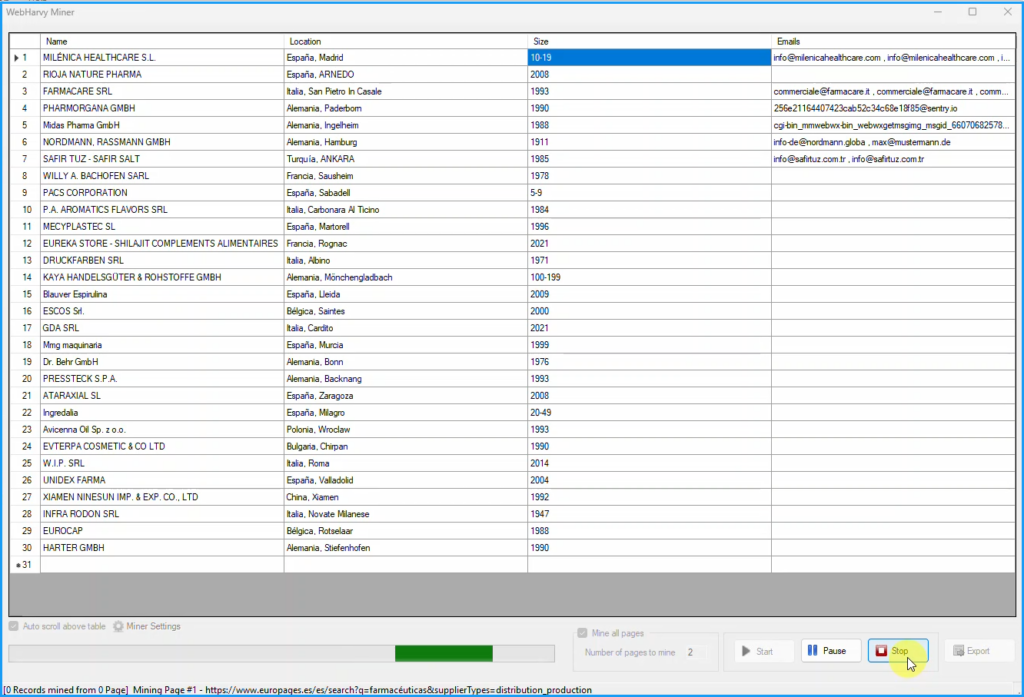
Click the Stop button under Configuration pane in Home menu to stop configuration. Click the Start Mine button to start mining data using the configuration.
Questions
If you have any questions, please do not hesitate to reach out to us. Refer to the Getting Started Guide to get started.