
Web Scraping football data helps in creating a comprehensive dataset containing statistics of teams, players and matches, which can be used for analysis or to build your own dashboards displaying various stats and tables.
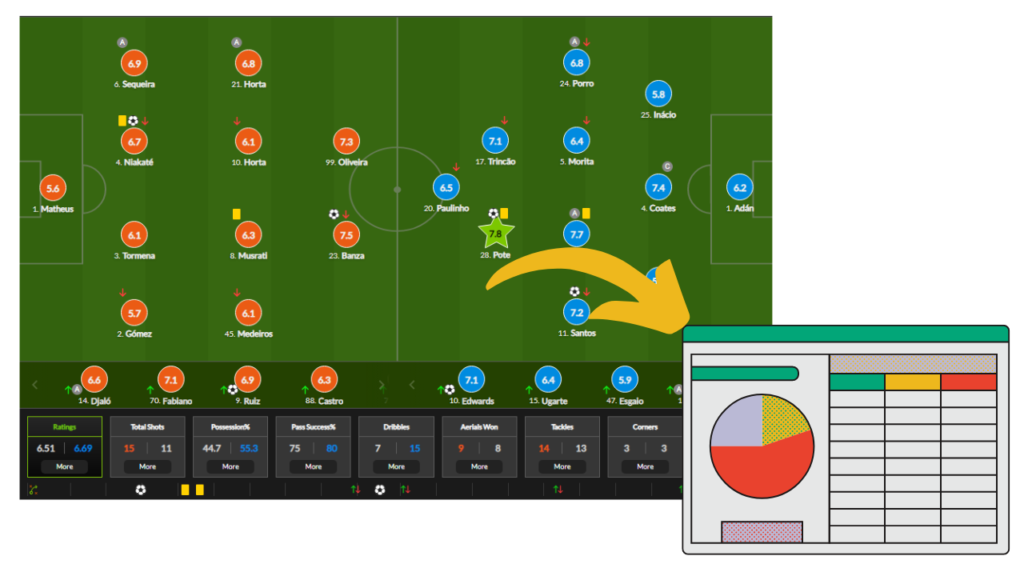
Web Scraping is the process of automatically extracting data displayed by websites into spreadsheet files or database tables. The software that performs this extraction is called a web scraper. Web Scraping is used for various applications in marketing, academic research, real estate, eCommerce, machine learning, sports analysis, and more.
This guide demonstrates how to use a web scraper to build comprehensive football datasets by extracting team, player, and match statistics from popular football stats websites.
Web Scraping Football Data
The first step in data collection is identifying your data sources – the websites that display the statistics you need. You will need to identify the websites which display the data which you need. Once identified, you have two options for extraction: build a custom web scraper (if you’re a developer or have the budget to hire one) or use a ready-made tool like WebHarvy that lets you scrape data from any website without coding, including football statistics sites.
Using WebHarvy to Scrape Football Data
To scrape football stats with WebHarvy, download and install the free trial version on your computer. Once launched, WebHarvy opens with a browser-like interface where you can load and navigate web pages.
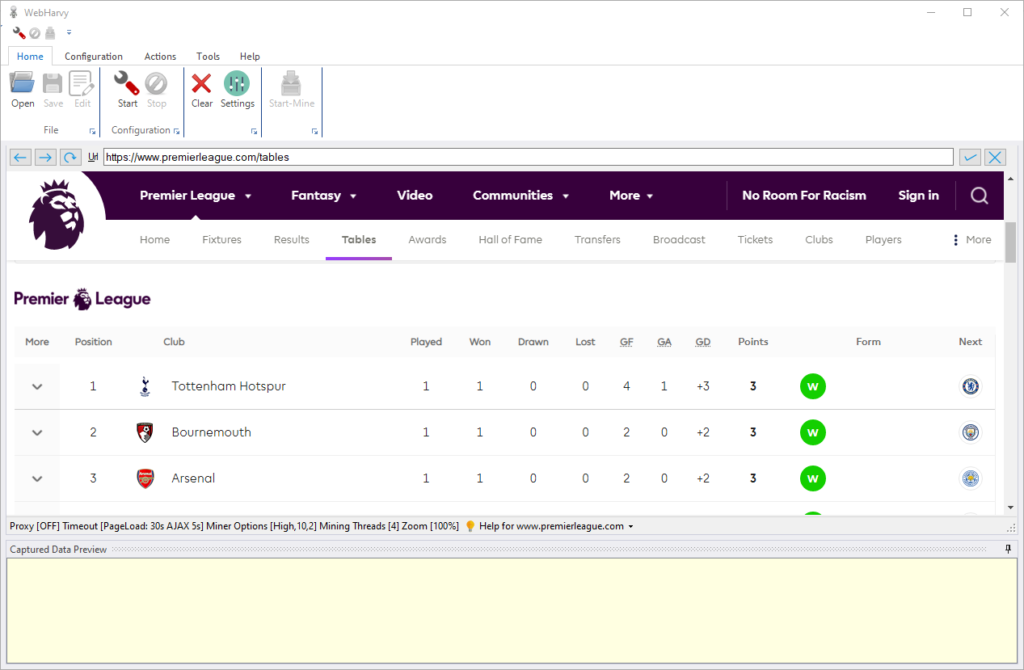
WebHarvy is a visual web scraper – which means you can click and select the data which you need to scrape from any website. WebHarvy can be used to scrape football stats and tables from the following websites (not limited to)
- FootyStats.org
- WhoScored.com
- SoccerStats.com
- FBref.com
- Sofascore.com
- Nowgoal.com
- etc.
WebHarvy can also scrape sports betting odds data from the following websites.
- Oddsportal.com
- FlashScore.com
- BetExplorer.com
- etc.
Steps to follow to scrape football stats and tables
As a simple first example, let us try to scrape the standings table of Premier League matches displayed at https://www.premierleague.com/tables.
Scraping Football League Standings Table
- Download and install WebHarvy on your computer.
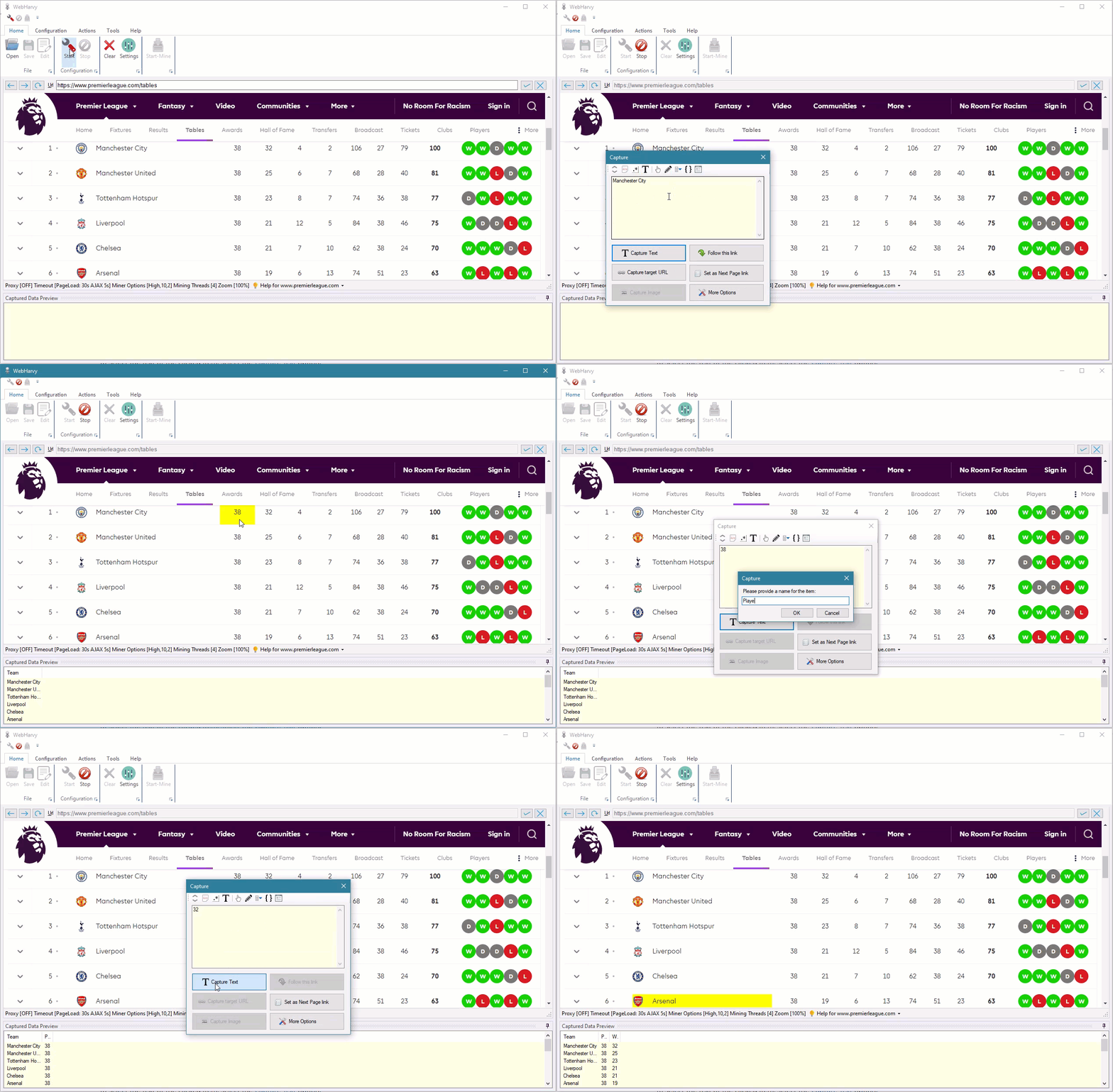
- Load the target page – Open WebHarvy and navigate to https://www.premierleague.com/tables in the configuration browser.
- Start Configuration by clicking the Start button in the Home menu.
- Select data to extract – Click any data element on the page to extract it
- Clicking any item on the page will bring up a Capture window with various options.
- To select the text of the clicked item, select the Capture Text option.
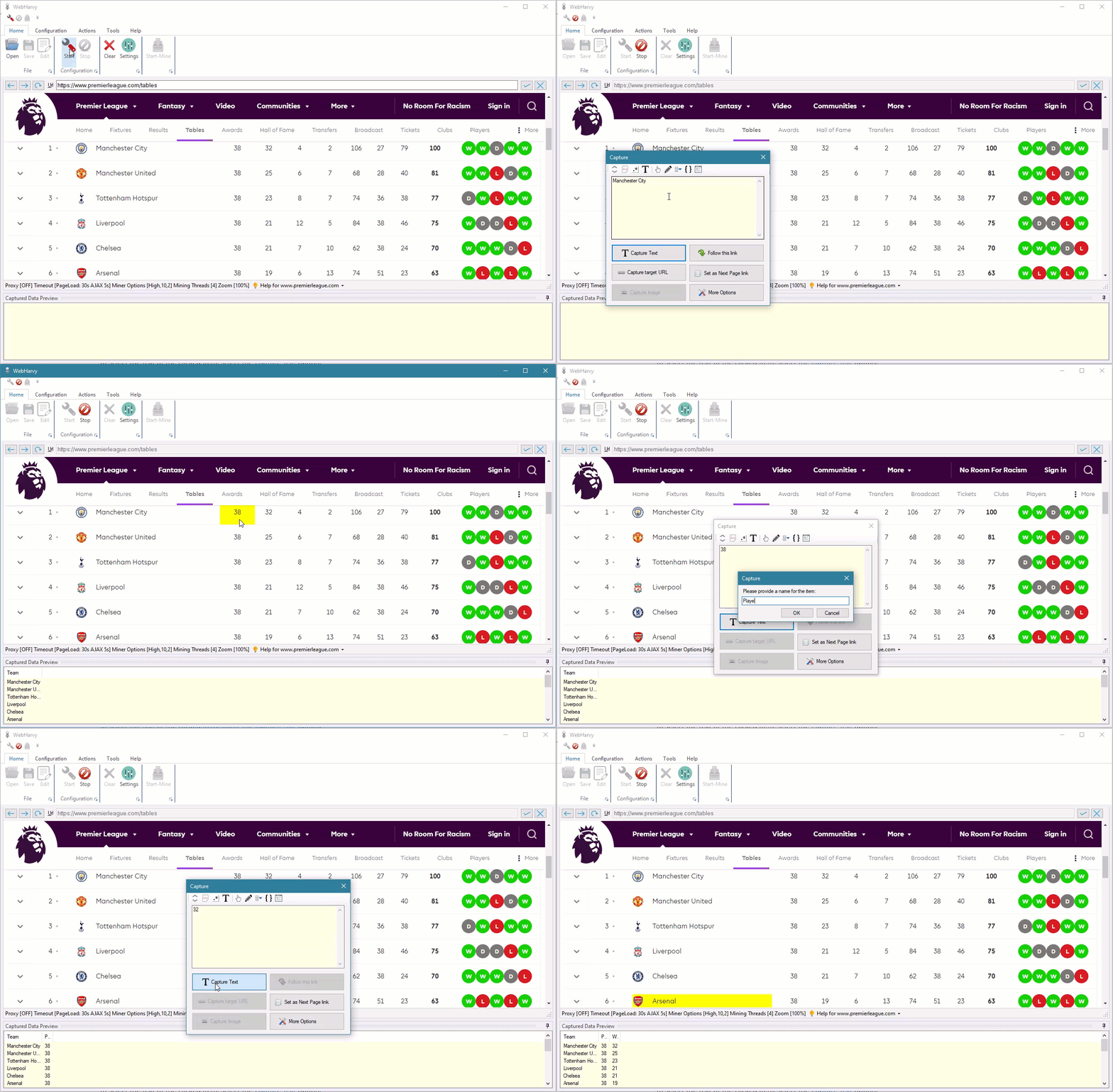
- Once you have selected all required data from the page, click the Stop button to Stop Configuration
- Click Start Mine to start mining data using the configuration created.
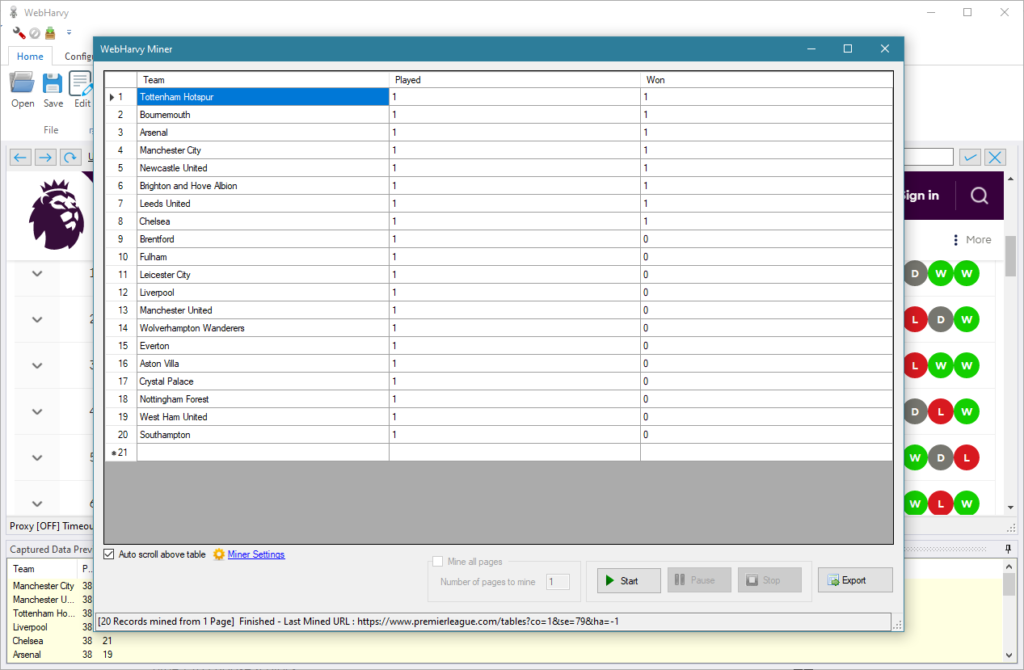
- Export scraped data – Once mining completes, click the Export button to save the mined data to a spreadsheet file or database.
Scraping Football Match results and Stats
WebHarvy can extract complete match data for any league and season, including match details (date, location, score) and performance statistics (possession, shots on target, fouls, corners, tackles, passes, and more).
This example demonstrates scraping match data from the 2021-22 Premier League season.
Steps to follow
- Load the match listings page – Open WebHarvy and navigate to the page displaying 2021-22 Premier League matches
- Start Configuration – Click the Start button in the Home menu
- Select match details – Using the Capture Text option, click to select:
- Home/Away Team Names
- Final Score
- Match Location
- etc.
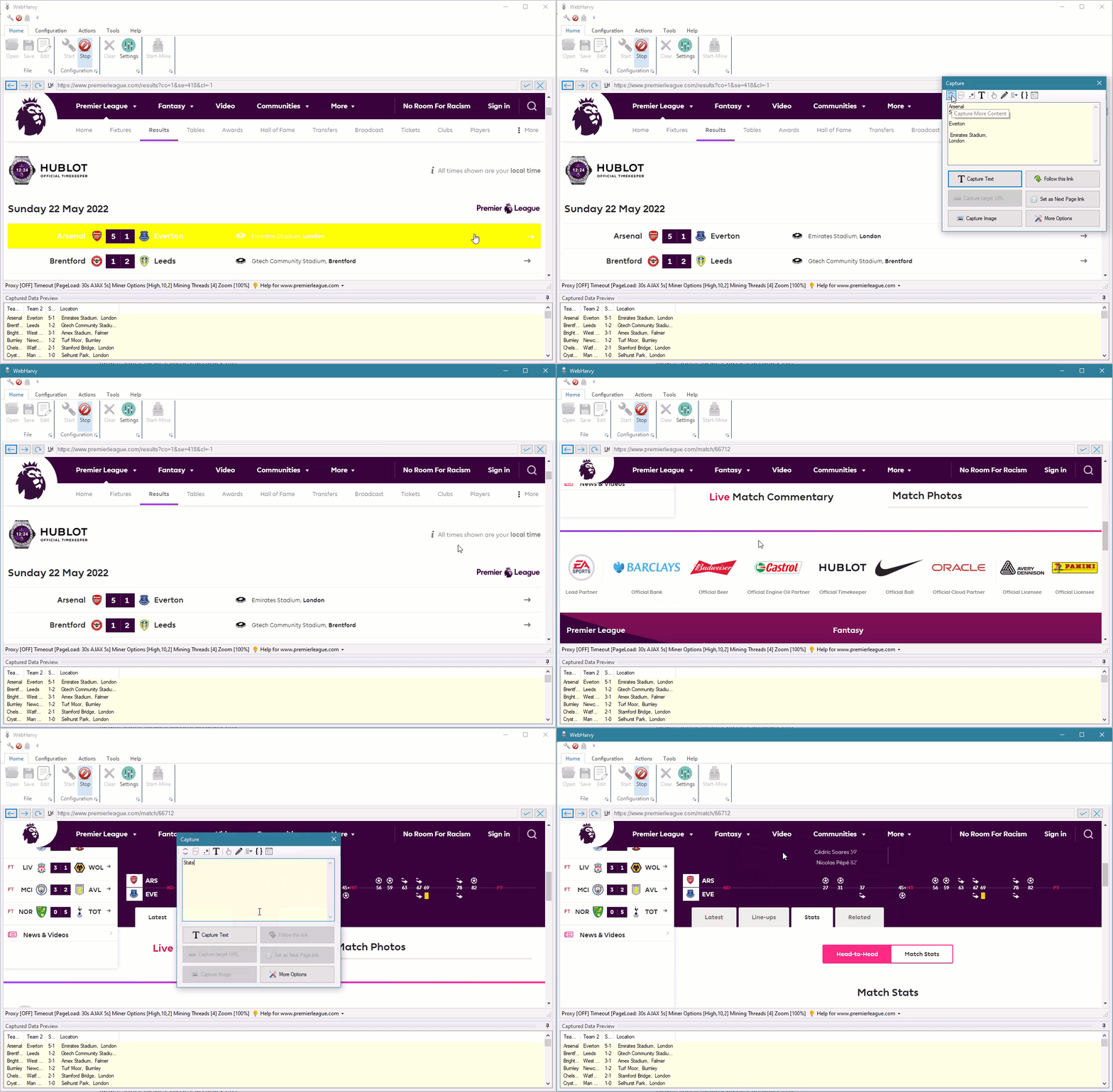
- Enable infinite scroll pagination – Since the page loads additional matches as you scroll, select the ‘Scroll to load next page’ option (see detailed instructions)
- Configure link following – To scrape detailed stats from individual match pages:
- Click any empty space in the first match row
- Select Capture More Content option
- Click the Follow this link option
- Wait for page load – Wait for the match details page to fully load
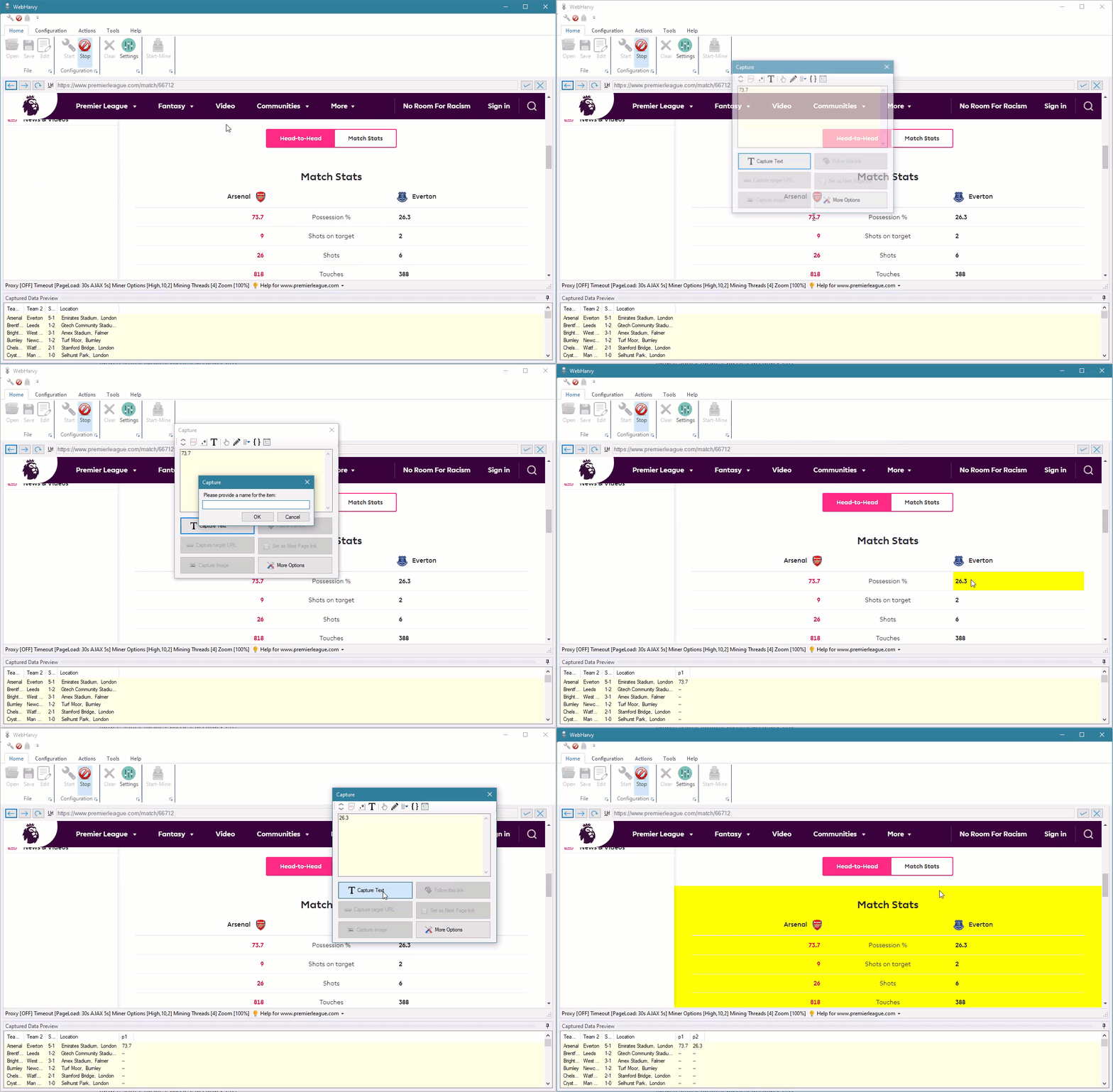
- Access Statistics – Click the Stats tab, then select More Options > Click from Capture window
- Select match statistics – The stats page will load, allowing you to click and select match statistics such as possession, shots on target, shots, tackles, passes, accuracy and more.
- Stop Configuration – Once you have selected all required data, click the Stop Configuration button.
- Save Configuration – You may now optionally save the configuration
- Scrape Data – Click the Start Mine button to start scraping match data
- Export scraped data – Once scraping completes, the data can be exported to a file or database
Scraping WhoScored.com – Player Statistics
Watch the video below to learn how WebHarvy can be used to scrape player statistics for all Premier League teams from WhoScored.com.
Scrape FootyStats.org Data
The video below demonstrates how to scrape match details, betting odds, predictions, tips, and historical scores from FootyStats.org using WebHarvy.
Scraping Football Match Logs from FBref.com
The video below demonstrates how to use WebHarvy to extract detailed match logs from The video below demonstrates how to use WebHarvy to extract detailed match logs from FBref.com.
.
Web Scraping Football Statistics from SoccerSTATS.com
Video displayed below shows how WebHarvy can be used to scrape football match stats from SoccerSTATS.com website.
Ready to Start Scraping Football Data?
Download the free trial version of WebHarvy and start scraping football data today. To get started, please follow this link.
Questions About Web Scraping?
Our customer support team is here to help. If you have any questions, please do not hesitate to reach out to our customer support team.