
Learn how to scrape product data from BestBuy without writing any code. WebHarvy is a point-and-click visual web scraper which can be used to scrape data from any website including eCommerce websites like Amazon, eBay, Wallmart, BestBuy etc.
The following video shows how WebHarvy can be used to easily scrape product data from BestBuy website.
Download and Install WebHarvy
WebHarvy is a desktop web scraping software, which runs locally on your PC. For this reason, there is no recurring monthly subscription fee for WebHarvy. There is a one-time license fee for purchasing the full version of WebHarvy. You can download the free trial version of WebHarvy from https://www.webharvy.com/download.html and install it on your computer.
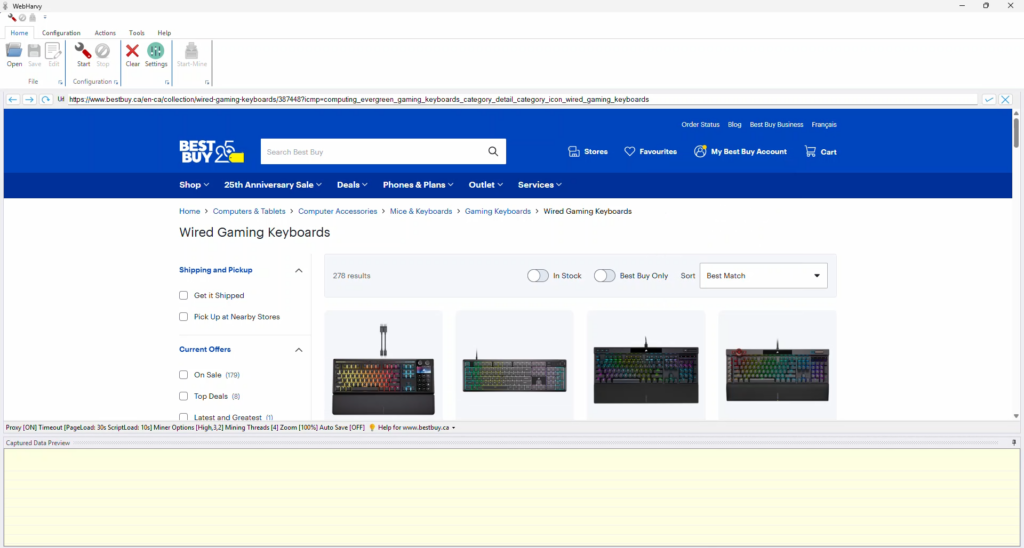
The user interface of WebHarvy resembles a normal web browser. You can load and navigate web pages within WebHarvy. In order to scrape data, you should first load the page from which you wish to extract data within WebHarvy’s browser.
Start Configuration and Select Data
To select the data which you need to scrape from the loaded web page, Start Configuration, but clicking on the Start button in the main menu. While in configuration mode, you can just click over any data item displayed on the page (text or image) to select it for extraction. Clicking any data item on the page brings up a Capture window with various options. Select the Capture Text option to scrape the text of the selected item.
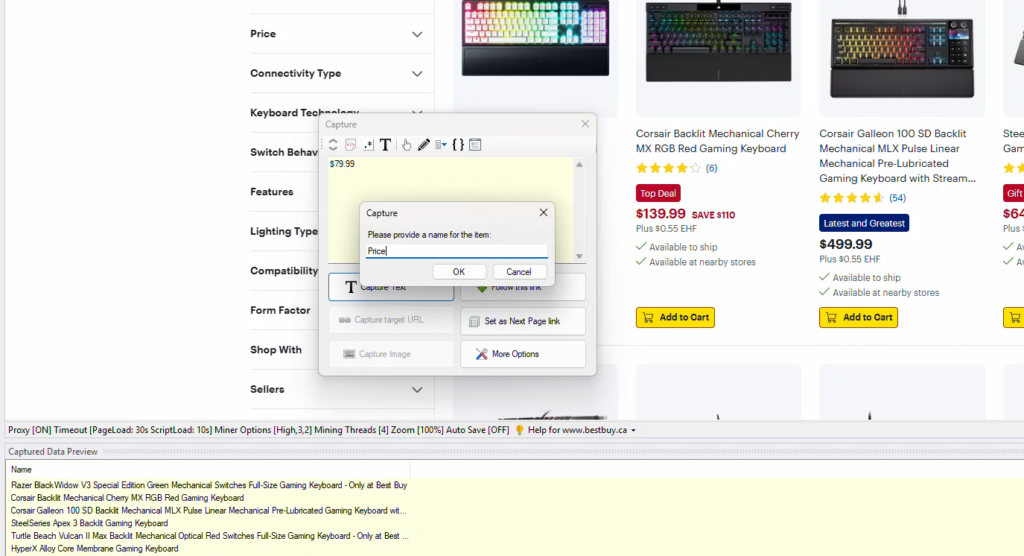
Details like product name, price, brand, model, rating etc. can be selected for extraction by following this method.
Scraping Data from Multiple Pages
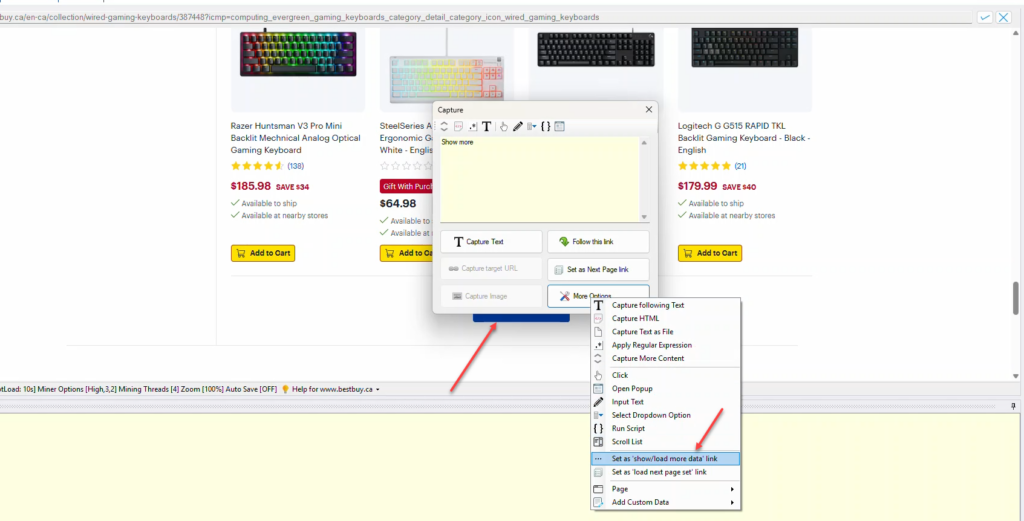
BestBuy website loads more data on the same page when the user clicks on a Load More button displayed at the end of listings. To teach WebHarvy how to load and scrape data from multiple pages, scroll down to the end of the page and click on the Load More button. Select the Set as ‘Show/Load More Data’ link option from under More Options in the resulting Capture window.
Following Links
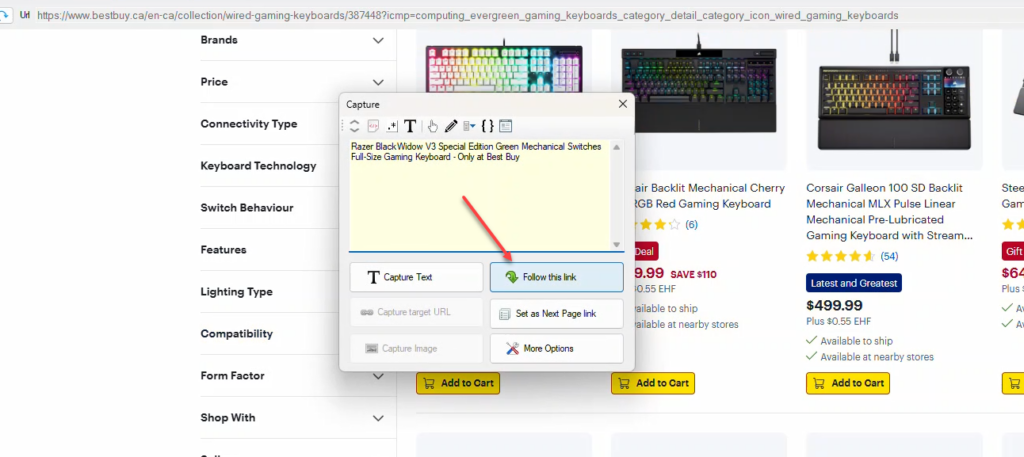
To follow each product link to scrape additional data, click on the title/link of the first product and select the Follow this link option from the resulting Capture window. Wait for the details page to load. Once loaded, you can click and select additional details.
Scraping Multiple Product Images
To scrape an image, you just need to click on the image during configuration and select the Capture Image option from the Capture window. To scrape multiple product images, click on the first thumbnail image displayed besides the main product image and select the Capture HTML option. Then select the Apply RegEx option. From the dropdown option in the RegEx window, select the option to get the image URL from HTML and Apply. Select Yes, when WebHarvy asks whether multiple images are to be scraped.
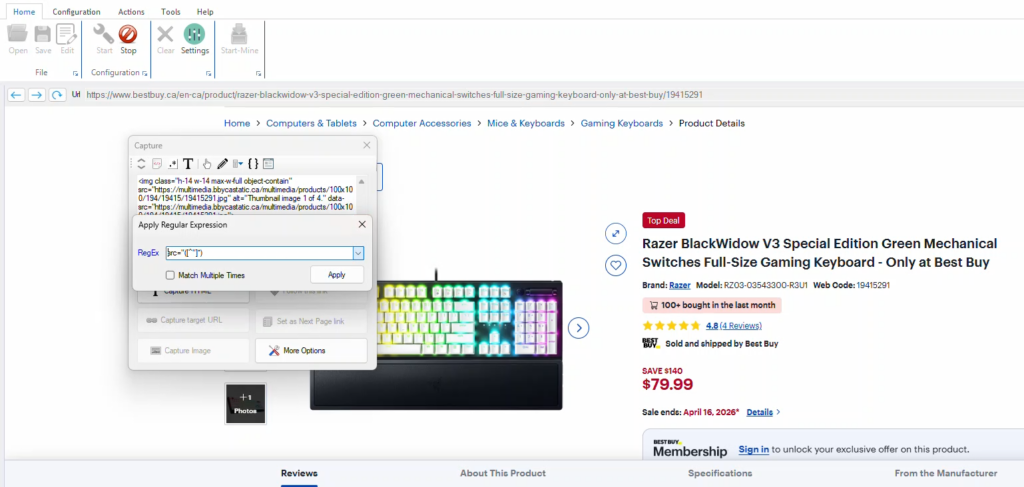
Scraping UPC from product page HTML
UPC is not directly displayed anywhere on the product page at BestBuy website, but it is present in the HTML code behind the page. To scrape UPC, click anywhere on the page and then double click on the Capture HTML toolbar button. This will select the entire page HTML. Apply the following RegEx code and then click on the main Capture HTML button to select UPC for extraction.
"upcs?"\:\["([^"]*)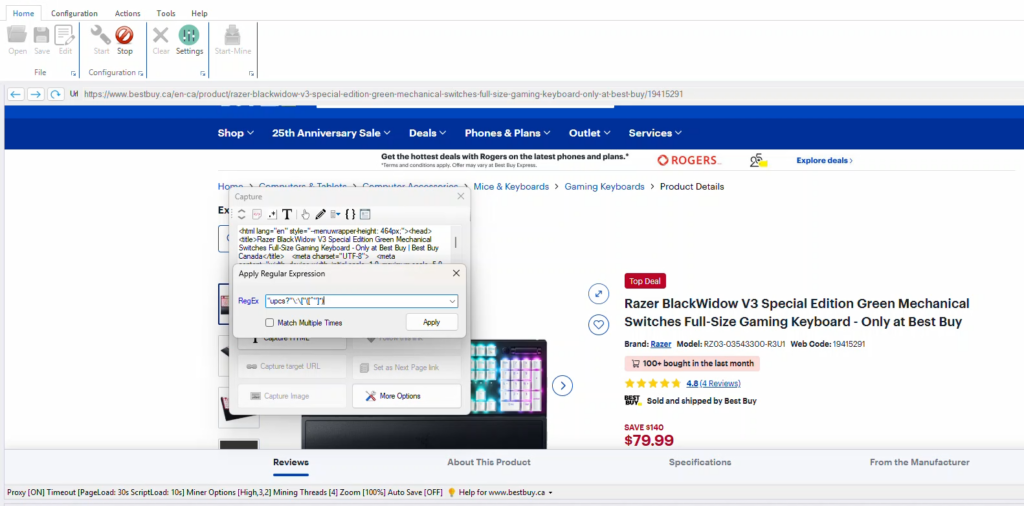
Scraping Data
After selecting all required data, Stop Configuration. Start Mine to start scraping data.
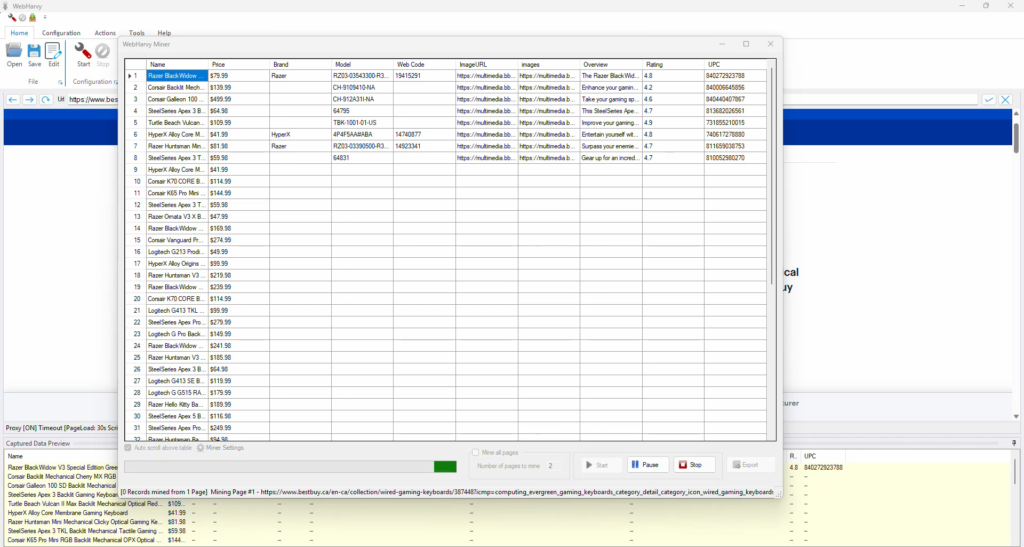
The scraped data can be saved to a file or exported to a database.